Bring your fleet across from a spreadsheet
Import the vehicles, customers and upcoming bookings you already keep in Excel or Google Sheets — in the right order — and fix any rows that don't go in.
- Time
- 20 min · 7 steps
- Plans
- Every plan. Imported vehicles use your vehicle slots (Starter 5, Standard 10, Plus 25).
- Where
- Workspace → Import
- Checked
- Sep 25, 2026
Save each sheet as a CSV file
CeeRent reads CSV files — the plain “comma-separated” format Excel and Google Sheets can both save or download. Make one file for each kind: vehicles, customers, bookings.
The first row must be the column names, spelled exactly as in CeeRent’s template. You can import up to 500 rows at a time; split a bigger sheet into parts.
Open Import and go in order
Open Workspace → Import. The three imports are numbered: Vehicles, then Customers, then Future bookings. Each gets a check mark once something is imported.
Do them in that order. A booking finds its vehicle by plate number and its renter by email, so both must be in CeeRent first. Owners and managers can import.
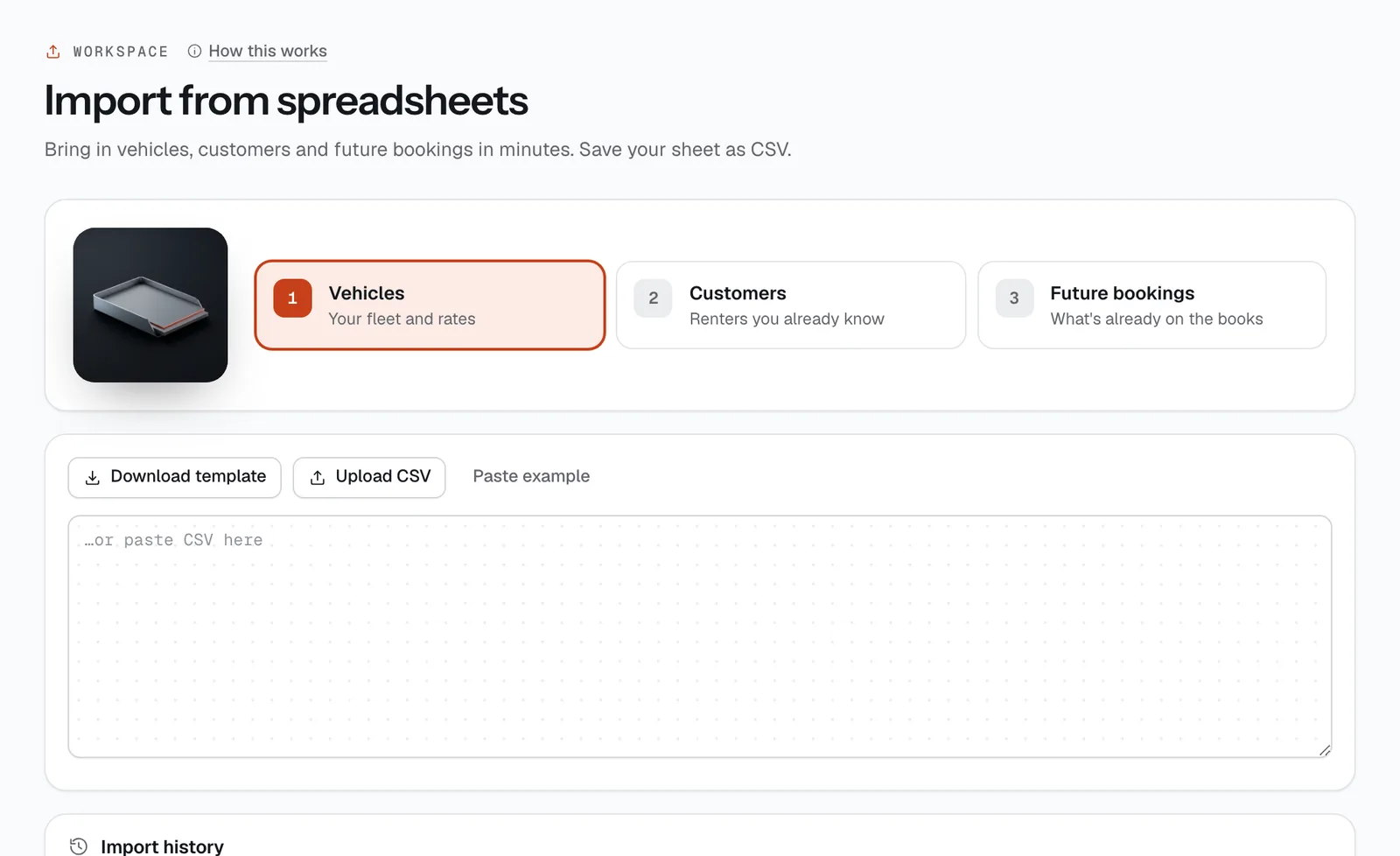
- Import in order: vehicles first
- Download template
- Upload CSV
- …or paste CSV here
Fill in the vehicles template
On the Vehicles tab tap Download template and copy your fleet into it:
Column What to put If left empty type carormotorcyclecar make, model e.g. Toyota, Wigo G make is required year e.g. 2023 this year plate e.g. NGA 1122 — at least 3 characters, no duplicates required color e.g. Orange White seats a number 5 for cars, 2 for motorcycles transmission automaticormanualautomatic fuel gasoline,dieselorelectricgasoline dailyRate peso rate per day, more than 0 required hourlyRate peso rate per hour daily rate ÷ 8 deposit security deposit in pesos 0 odometer km on the clock today 0 Imported vehicles go live at your first branch, with stand-in pictures and the next oil change set 5,000 km ahead. Add real photos, registration and insurance dates afterwards in Fleet → Vehicles.
Fill in the customers template
On Customers, download that template. Columns:
- name — full name. email — required; it’s how CeeRent recognises the renter. phone — a mobile number with at least 10 digits.
- licenceCodes — the codes on their licence, separated by a space:
Amotorcycles,Bcars,B1,B2. Example:A B. - tier —
standard,trustedorvip(empty means standard). Trusted and VIP renters may pay part now and the rest at pickup.
If an email is already one of your customers, CeeRent updates that customer instead of adding a second one. Every imported renter still uploads their licence and a selfie before their first pickup — the codes you import are a note, not a check.
Fill in the future bookings template
On Future bookings, list the rentals already promised to people:
- plate — must match a vehicle in CeeRent. customerEmail — must match a customer.
- start and end — date and time like
2026-10-10T09:00. The start can’t be in the past and the end must be after it. - paidBy —
cash,gcash,maya,card,qrph,bankorotc(empty means cash).
CeeRent prices each booking from the vehicle’s rates in CeeRent, records it as paid in full by that method, and sends the renter the usual “booking confirmed” message. If someone hasn’t paid yet, add their booking by hand instead (see Get paid, step 5).
Upload, check the preview, import
Tap Upload CSV and pick your file, or paste the rows into the box. Paste example fills in the template’s sample rows so you can see how it should look.
CeeRent shows how many rows it found and a preview of the first five. If the columns look right, tap Import (it says how many rows, e.g. Import 24 rows).
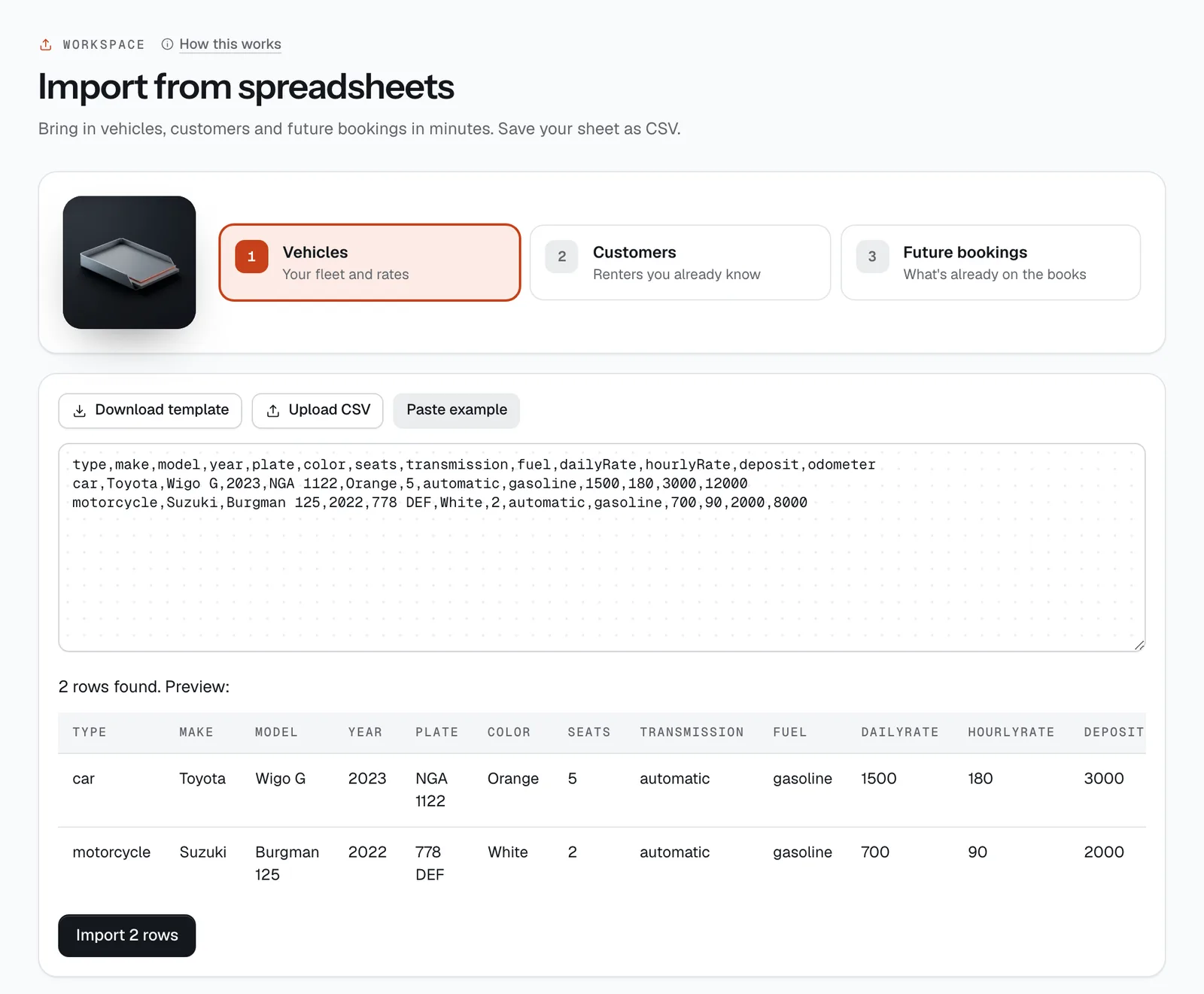
- Preview of the first rows
- Import
Fix the rows that didn't go in
Each row goes in on its own — one bad row doesn’t stop the others. The result says “Imported 22 of 24” and lists each problem by row. Row 1 is your header, so your first vehicle is row 2. Common ones:
- A vehicle with this plate already exists. — it’s in already; delete the row.
- You’ve used all your vehicle slots. — add a pack of 5 slots for ₱299/month in Subscription, or set some vehicles inactive.
- Daily rate must be more than zero. / Enter the plate number. — fill in the cell.
- No vehicle with plate … / No customer … Import customers first. — check the spelling, or import that vehicle or customer first.
- Those dates are no longer available for this vehicle. — two bookings overlap on one vehicle.
- Pickup time is in the past. — past rentals can’t be imported.
Fix those rows and import just them again. Every run is listed under Import history.
Good to know
- Imported bookings message your renters like any new booking. Let regular customers know you’ve moved to CeeRent before you import their bookings.
- Stand-in pictures are only a placeholder — renters trust real photos. Add yours per vehicle before you go live.
- Want help? On a free setup call we add your first 10 vehicles with you.
Stuck on a step?
A person answers, in Filipino or English — Mon–Sat, 8:00–20:00 PHT.
- Sign up and go liveCreate your account, work through the setup steps, switch your booking site on and share it. Most operators finish in one sitting.20 min
- Get paid: online, by link and at the counterConnect your Xendit account, let renters pay by GCash, Maya, card, QR Ph or over the counter, take chat and phone bookings with a payment link, collect the rest at the desk and send refunds.15 min
- Set up your teamGive each person the right role, licence and branches, set refund limits, keep sign-in safe, and switch access off the day someone leaves.10 min