Get paid: online, by link and at the counter
Connect your Xendit account, let renters pay by GCash, Maya, card, QR Ph or over the counter, take chat and phone bookings with a payment link, collect the rest at the desk and send refunds.
- Time
- 15 min · 7 steps
- Plans
- Every plan. CeeRent takes no commission on your bookings.
- Where
- Settings → Payment account · Payment links · each booking
- Checked
- Sep 25, 2026
Connect your payment account
Open Settings → Payment account. Tap Turn on online payments (CeeRent opens the account for you); the status turns Pending. Finish Xendit’s own check of your business with Complete Xendit verification and the status turns Verified.
From then on renters’ money goes straight into your own Xendit account — CeeRent never holds it. Only the owner can connect or change this account. Payment links, QR Ph and “hold the car and send a link” all need it verified.

- Status
Set your payment rules
In Settings → Policies → Booking & payment:
- Checkout hold — how long a vehicle is held while the renter pays online (default 15 minutes). If they don’t pay in time, it’s released.
- Balance reminder — when renters who paid part are reminded about the rest (default 48 hours before pickup).
- Reservation fee / partial payment — the share paid up front (default 50%): by every renter if When renters pay is set to a reservation fee, otherwise only by Trusted and VIP customers who choose to.
Tap Save policies. Changes apply to new bookings; each existing booking keeps the rules it was made under.

- Checkout hold
- Balance reminder
- Reservation fee / partial payment
Know what renters see at checkout
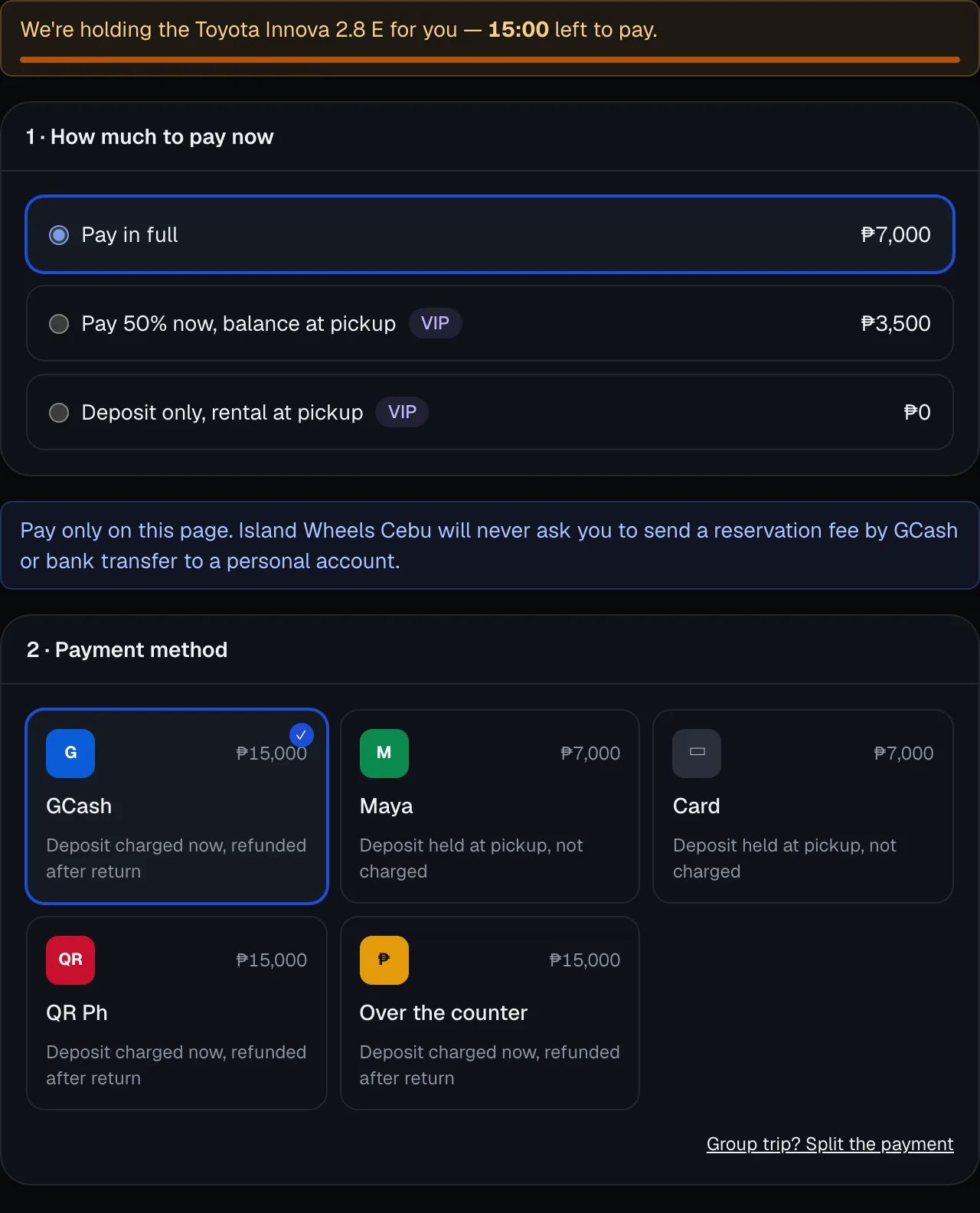
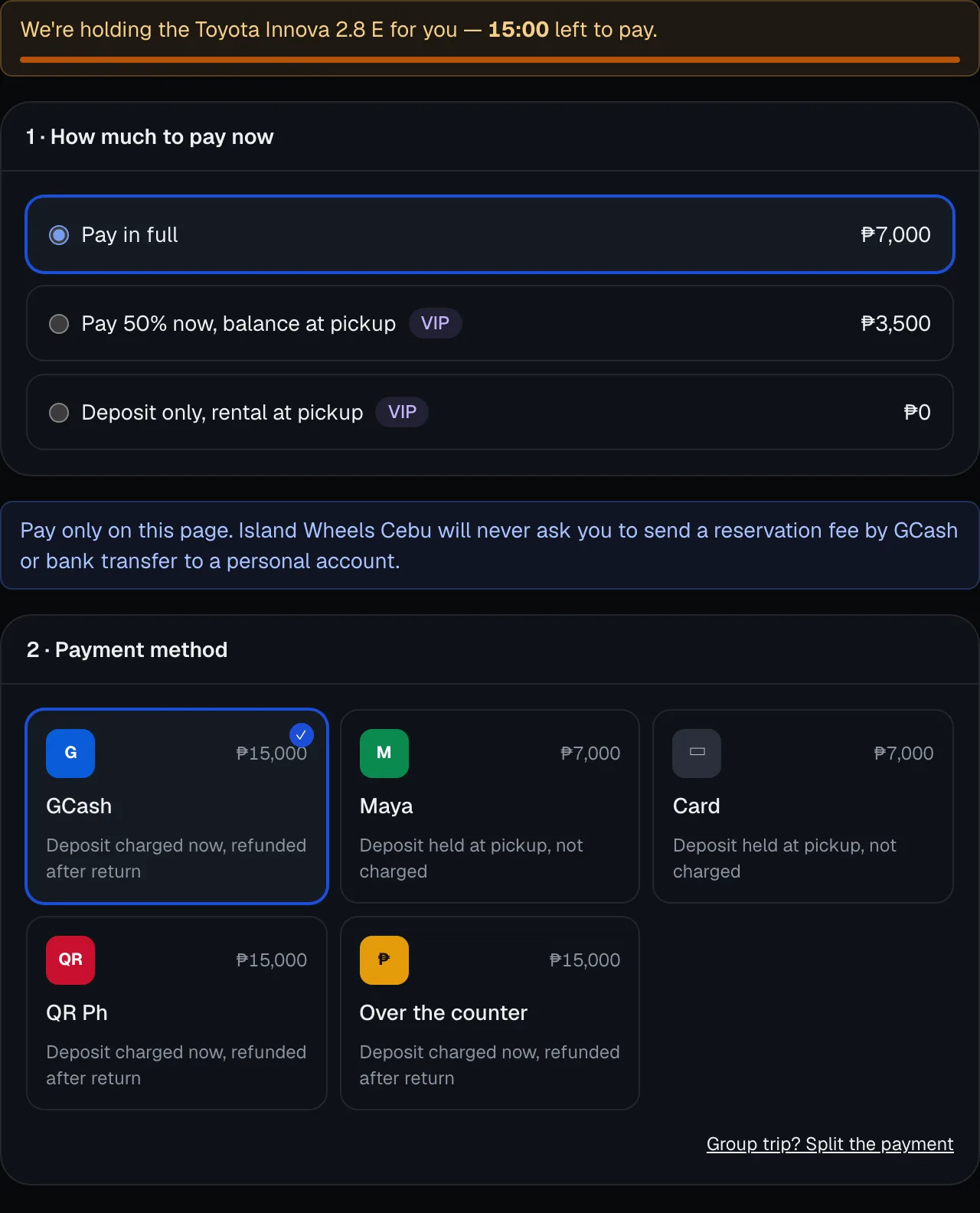
On Review and pay the renter sees a countdown for their hold, then How much to pay now:
- Pay in full — everyone.
- Pay 50% now, balance at pickup and Deposit only, rental at pickup — only customers you’ve set to Trusted or VIP (open the customer and change Tier). Others see these greyed out.
Then the Payment method: GCash, Maya, Card, QR Ph or Over the counter. With card or Maya the deposit is only held at pickup, not charged (“deposit hold” — the money is reserved on their card, not taken). With the others the deposit is charged now and refunded after the return. Groups can tap Group trip? Split the payment.
- Pay in full
- Part-payment options (Trusted and VIP)
- Payment method
Take a phone or chat booking with a payment link
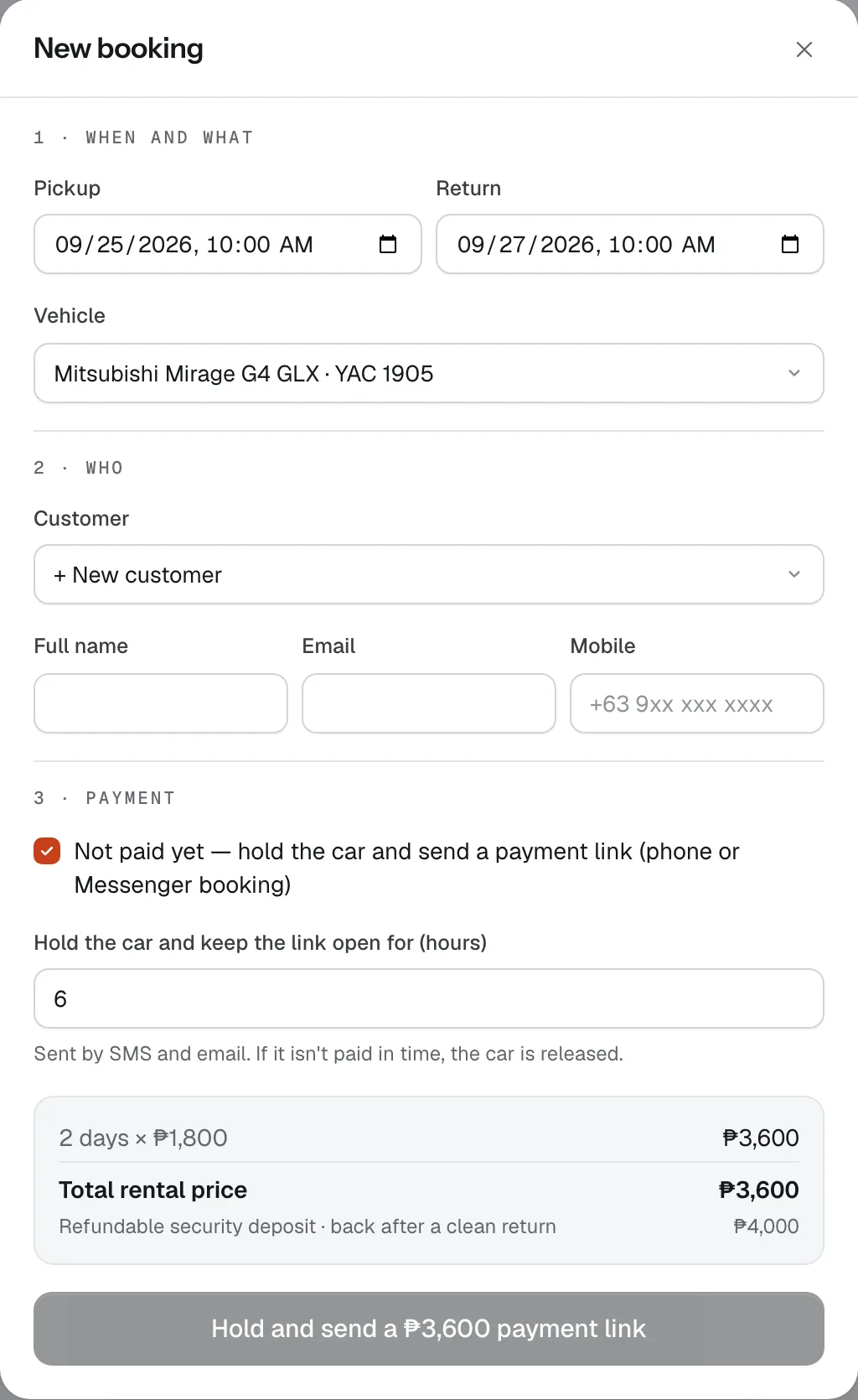
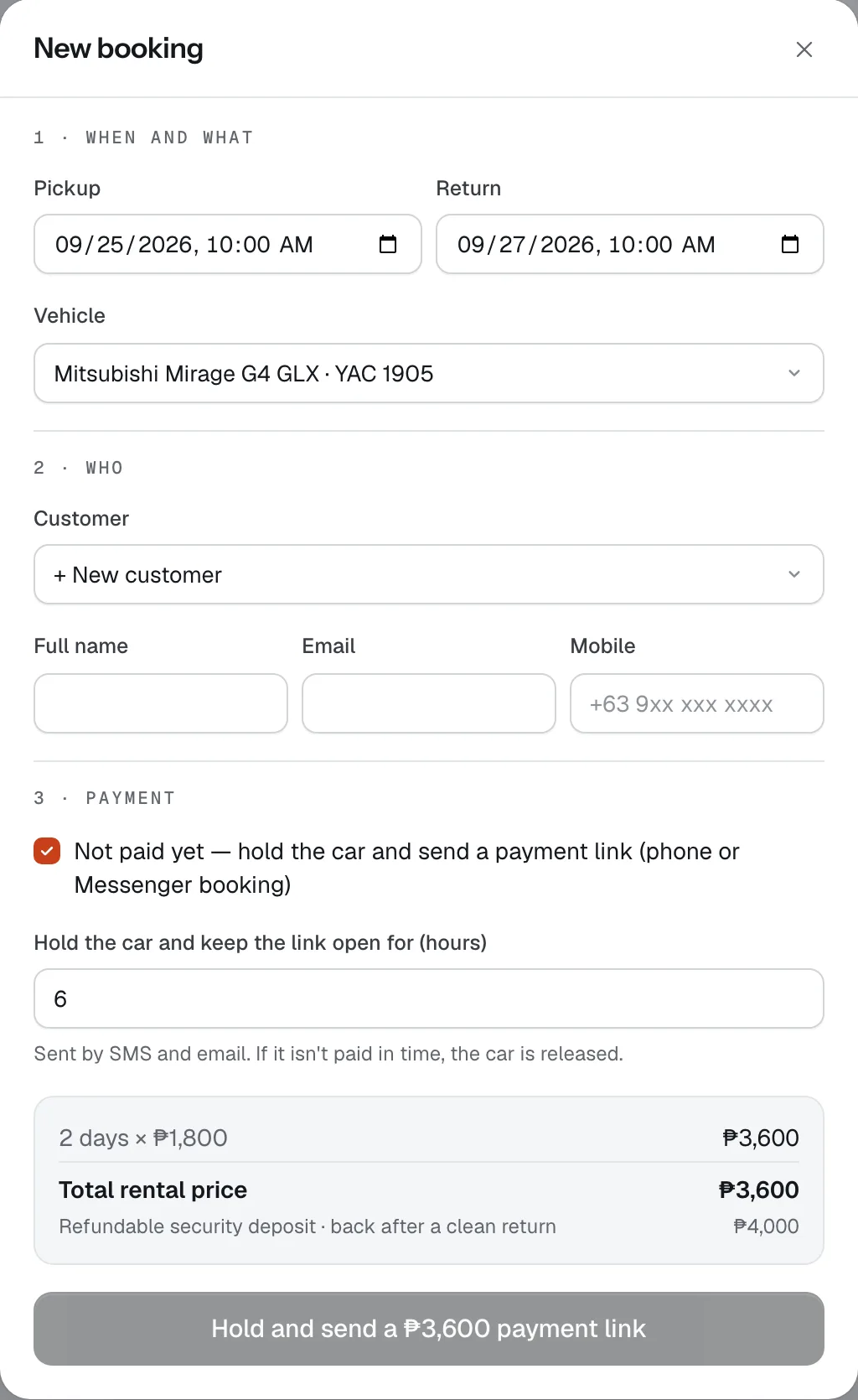
Someone books by call, text or Messenger but hasn’t paid? Open Bookings → New booking, pick the dates, vehicle and customer, then tick Not paid yet — hold the car and send a payment link (phone or Messenger booking).
Set how many hours to hold the car (default 6, up to 72) and tap Hold and send a … payment link. The renter gets the link by SMS and email. The car is theirs while the link is open; if it isn’t paid in time, the car is released.
If they’ve already paid you (cash, GCash to your number, bank), leave the box unticked and choose it under Payment received.
- Not paid yet
- Hours the car is held
- Hold and send the link
Send a link for any other amount
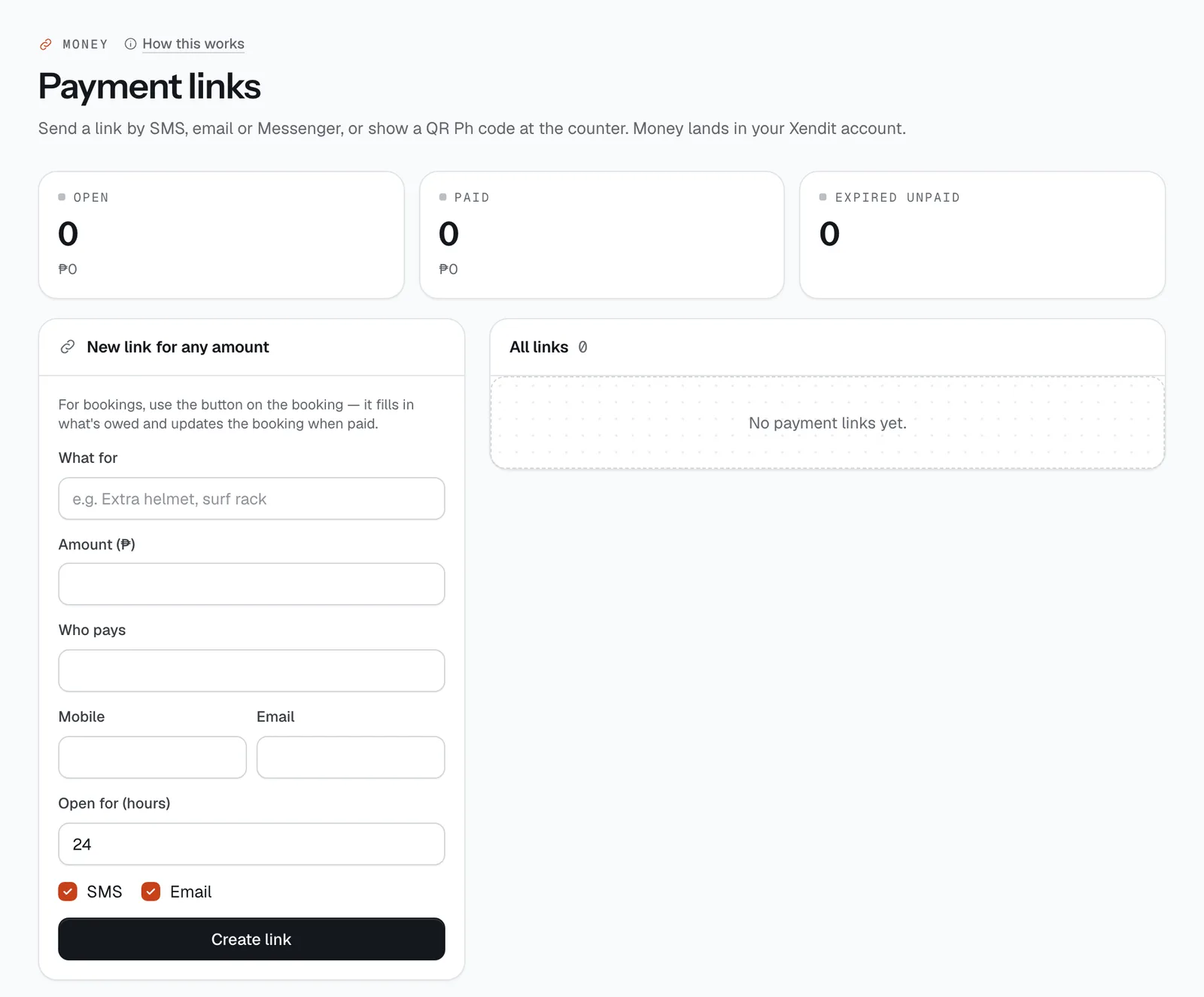
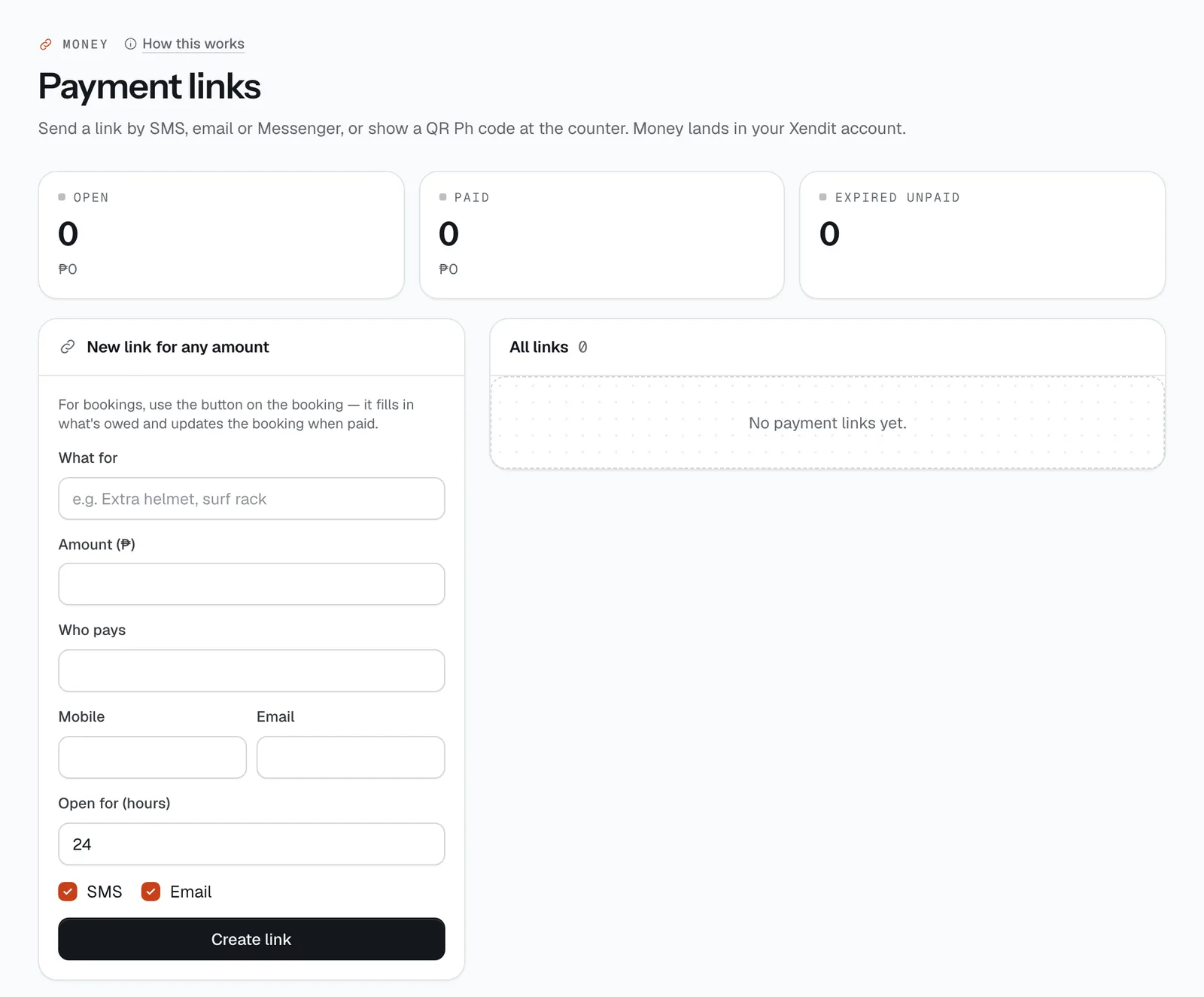
For extras, a reservation fee or anything not tied to a booking, use Money → Payment links → New link for any amount: What for, Amount (₱) (at least ₱20), Who pays, their Mobile and Email, and Open for (hours). Tap Create link.
You get a link to copy (or send by SMS and email) and a QR code. The list shows every link as open, paid or expired. For a booking, use the booking’s own Send payment link button instead — it fills in what’s owed (the booking, the remaining balance, or charges after a return) and updates the booking when paid.
- What for
- Open for (hours)
- Create link
Collect the rest at the counter
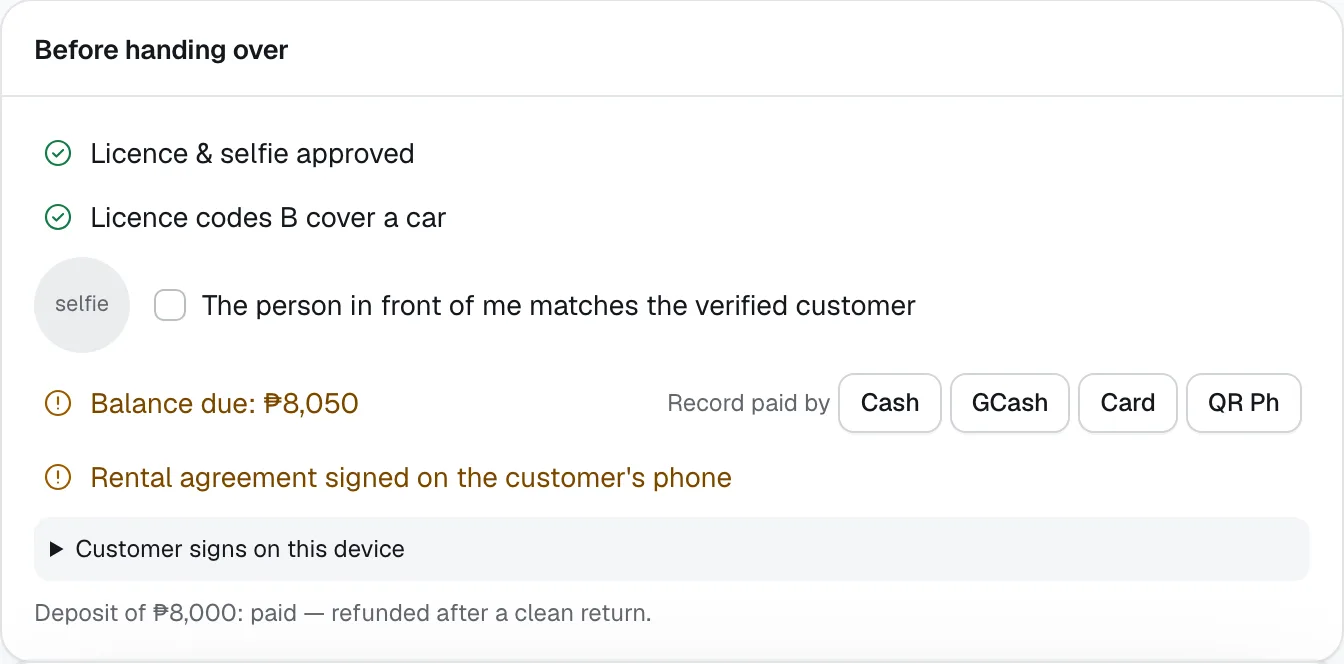
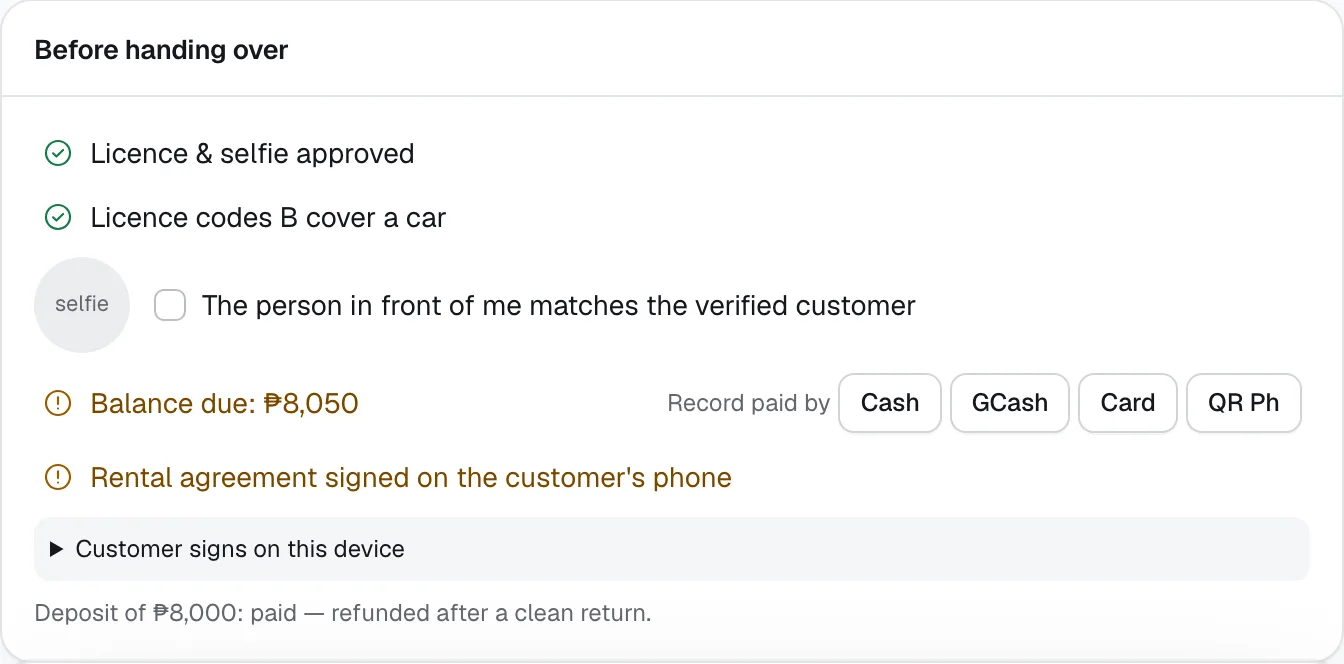
At pickup, the check’s Before handing over list shows any Balance due. Either:
- take the money and tap Cash, GCash or Card next to Record paid by, or
- tap QR Ph and let the renter scan the code with any bank or e-wallet app. It lands in your Xendit account and the booking updates by itself.
A pickup can’t be submitted while a balance is still due.
- Balance due
- Record paid by cash, GCash or card
- QR Ph
Refund when you need to
Most refunds go out by themselves, back to the renter’s original payment method: cancellations under your cancellation policy, cancellations you make (always a full refund), and deposits after a clean return.
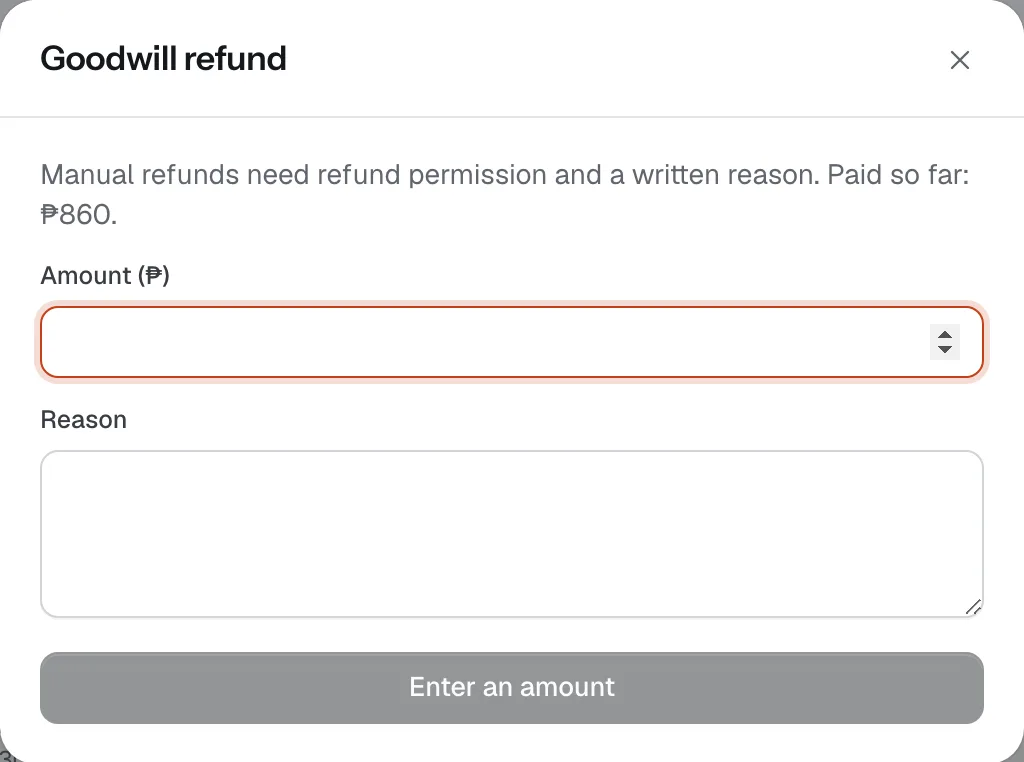
For anything else, open the booking and tap Goodwill refund. Enter the Amount (₱) and a Reason — both are required and the refund is logged with your name. Front desk staff can refund up to their limit (set when you invite them); managers and the owner have no limit.
If a refund fails, it shows as failed in Money → Payments & refunds → Refunds. Send the money yourself, then tap Record manual payout and say where it went, so the ledger and the renter’s credit memo match.
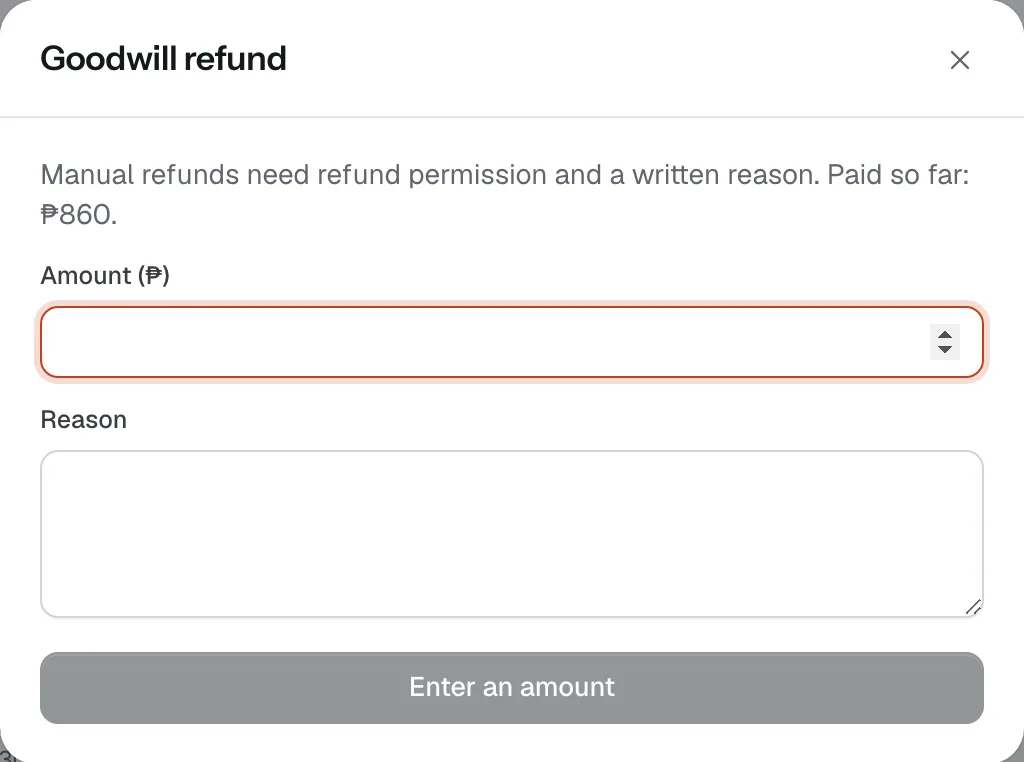
- Amount
- Reason


Good to know
- No commission. You pay your CeeRent plan and nothing per booking. Each payment method has its own fee, charged by Xendit under your agreement with them; CeeRent has no setting to add that fee to the renter’s total.
- Online payments, payment links and QR Ph payments each get an official receipt (OR-number) automatically, and refunds get a credit memo (CM-number). A balance you record with the Cash, GCash or Card buttons goes in the ledger but doesn’t print a separate receipt — use QR Ph or a link if the renter wants one.
- A link never charges more than is owed now. If you took cash after sending one, the link tells the renter the amount has changed and to ask you for a new one.
- Renters see how long their money takes: e-wallet refunds usually arrive within about an hour, card refunds in 3–7 banking days.
Stuck on a step?
A person answers, in Filipino or English — Mon–Sat, 8:00–20:00 PHT.
- Your first pickup, step by stepApprove the renter's licence, collect what's owed, get the agreement signed, photograph the vehicle and hand over the keys — with a record you and the renter both agreed to.12 min
- Answer Messenger, Viber and WhatsApp with auto-replyBring your chats into one Inbox, let the auto-reply answer date and price questions with live availability, and step in to reply or send a payment link.10 min
- Returns, deposits and damage claimsCheck the vehicle back in, let CeeRent work out fuel, mileage, late and toll charges, release clean deposits at once, and handle damage with evidence the renter can see.12 min
- Close the monthCheck every peso in and out, pull your receipts, log your costs, see which vehicles made money, and hand your bookkeeper clean CSV files.20 min