Close the month
Check every peso in and out, pull your receipts, log your costs, see which vehicles made money, and hand your bookkeeper clean CSV files.
- Time
- 20 min · 8 steps
- Plans
- Every plan. A bookkeeper can have their own view-only licence (₱49/month; one is included on Standard, two on Plus).
- Where
- Money → Payments & refunds · Expenses · Reports
- Checked
- Sep 25, 2026
Check the ledger
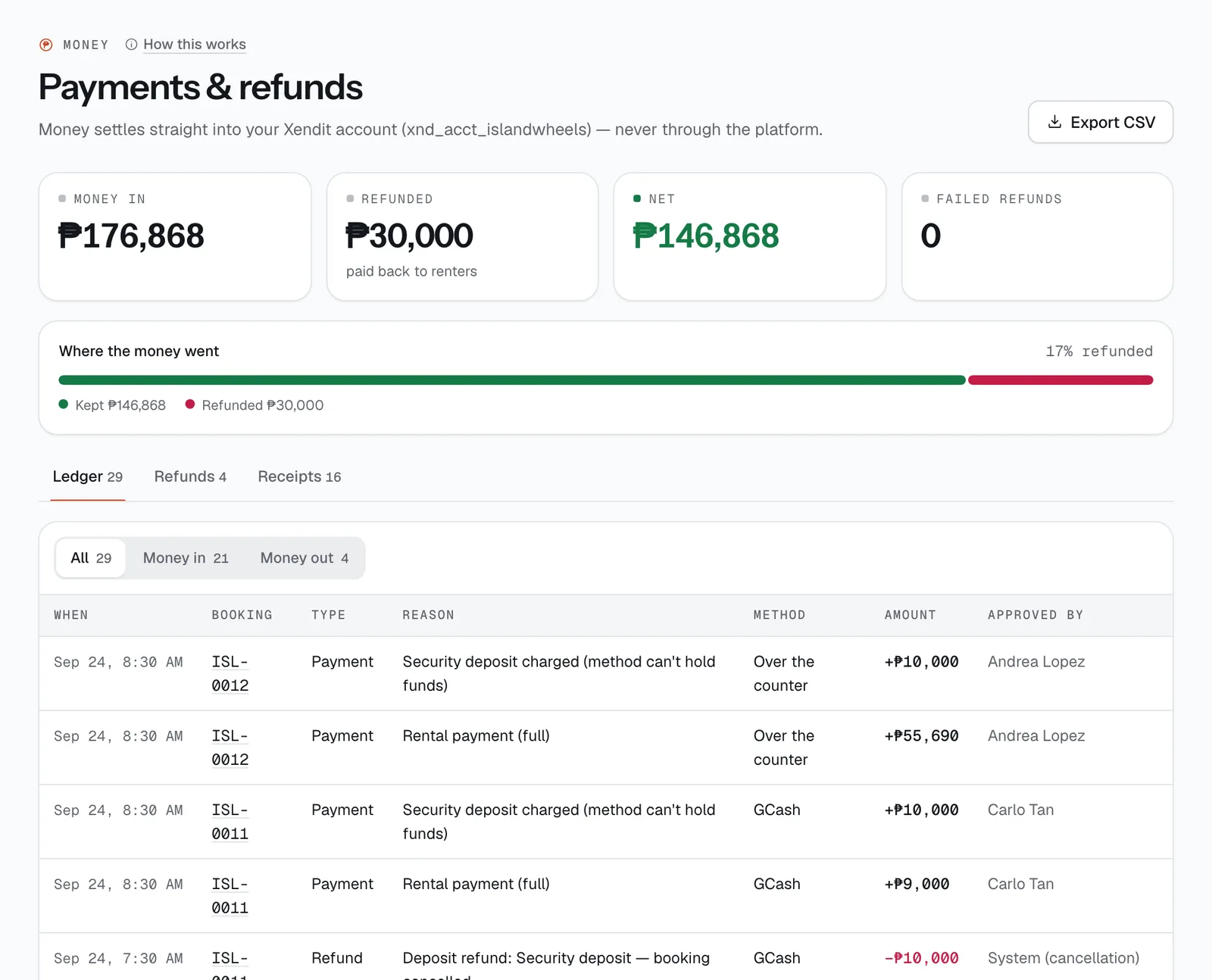
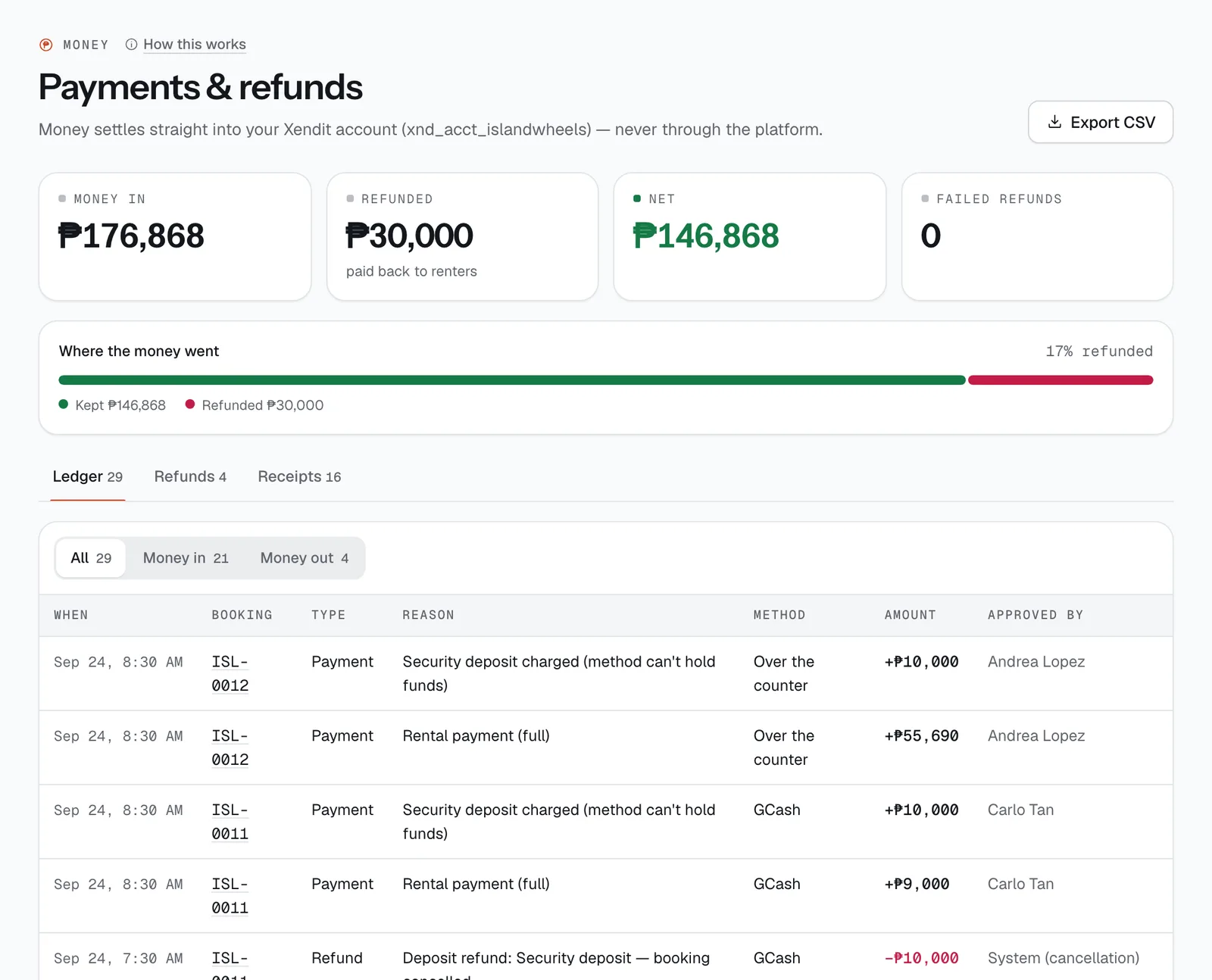
Money → Payments & refunds totals Money in, Refunded and Net, and counts Failed refunds. The Ledger lists every payment, deposit, deduction and refund with the booking, method, reason, amount and who approved it. Filter it by Money in or Money out.
The money itself sits in your Xendit account; this is CeeRent’s record of it. Tap Export CSV to download the whole ledger.
- Export CSV
- Refunds
- Receipts
Clear failed refunds
On the Refunds tab, refunds move from Sent to Completed by themselves. A Failed one couldn’t go back to the renter’s original method. Send the money yourself (GCash, bank), then tap Record manual payout and fill in Sent to — e.g. “GCash 0917 123 4567 · Juan Dela Cruz” — so the ledger and the renter’s credit memo match.
Pull your receipts
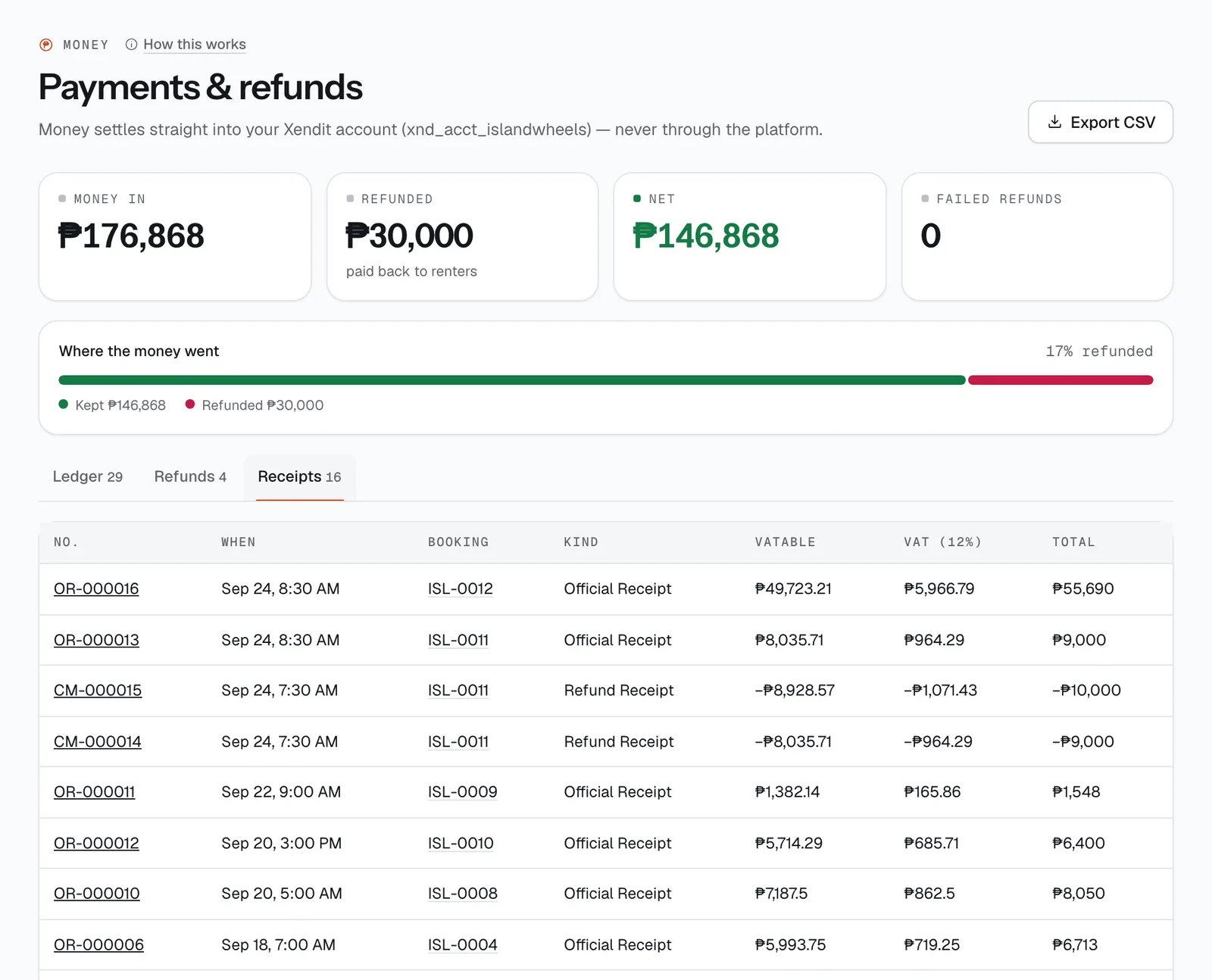
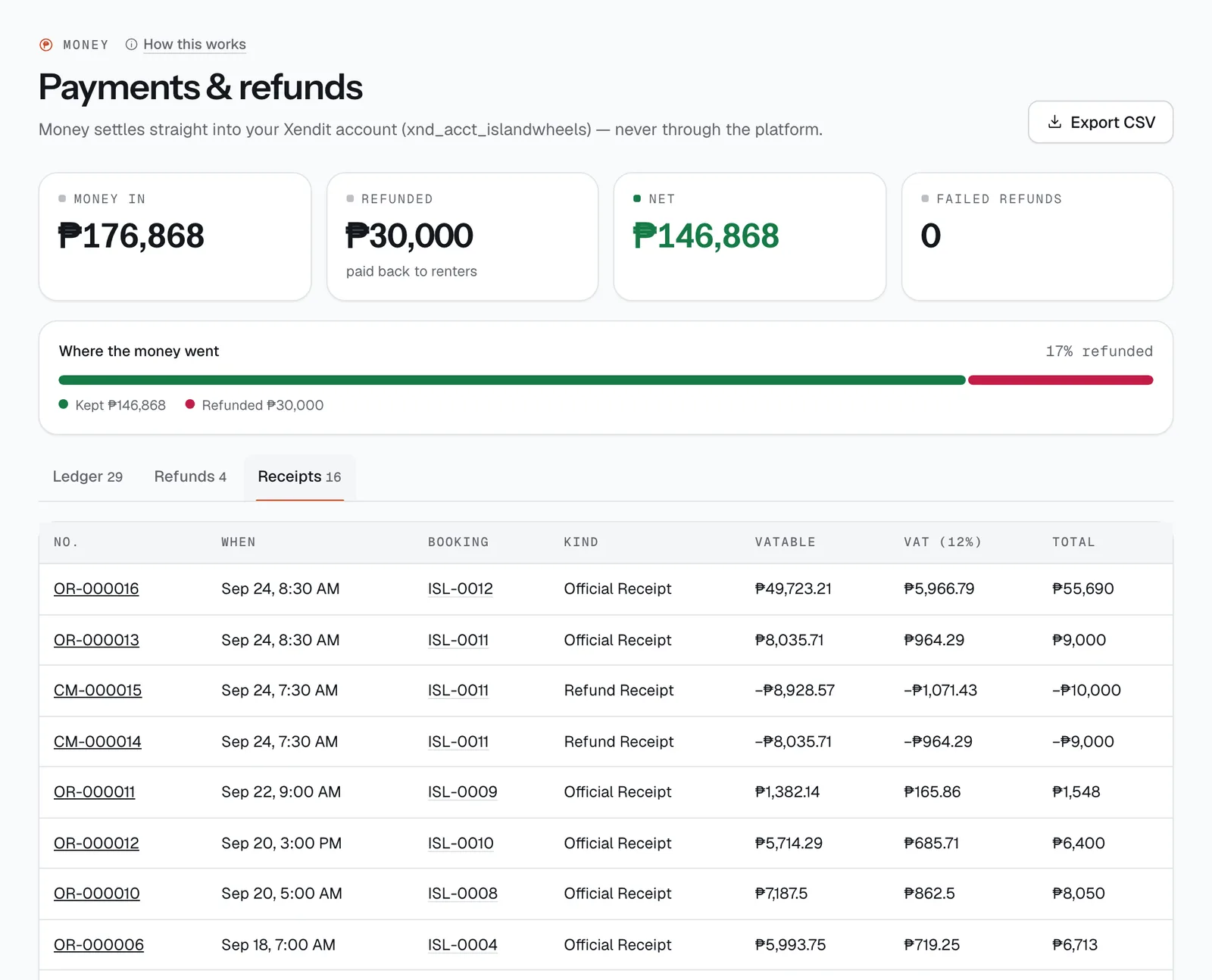
The Receipts tab lists every receipt CeeRent issued: number, date, booking, kind, VATable, VAT (12%) and total. Payments get an OFFICIAL RECEIPT numbered OR-000001 onwards; refunds get a CREDIT MEMO (REFUND) numbered CM-…, in the same running sequence.
Tap a number to open the receipt with your registered name, address and TIN, and tap Print.
- Open and print a receipt
- VAT (12%)
Log your costs
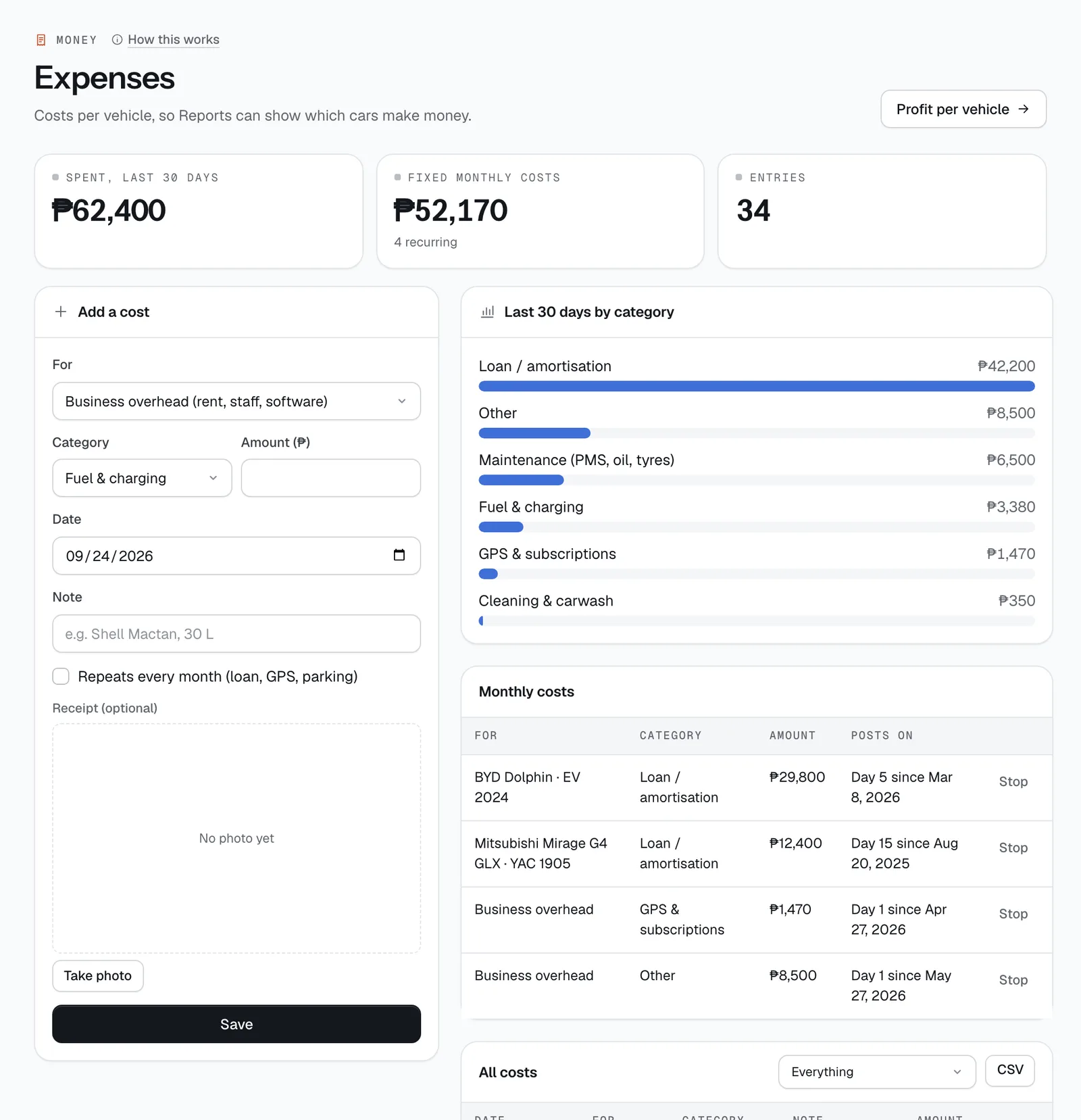
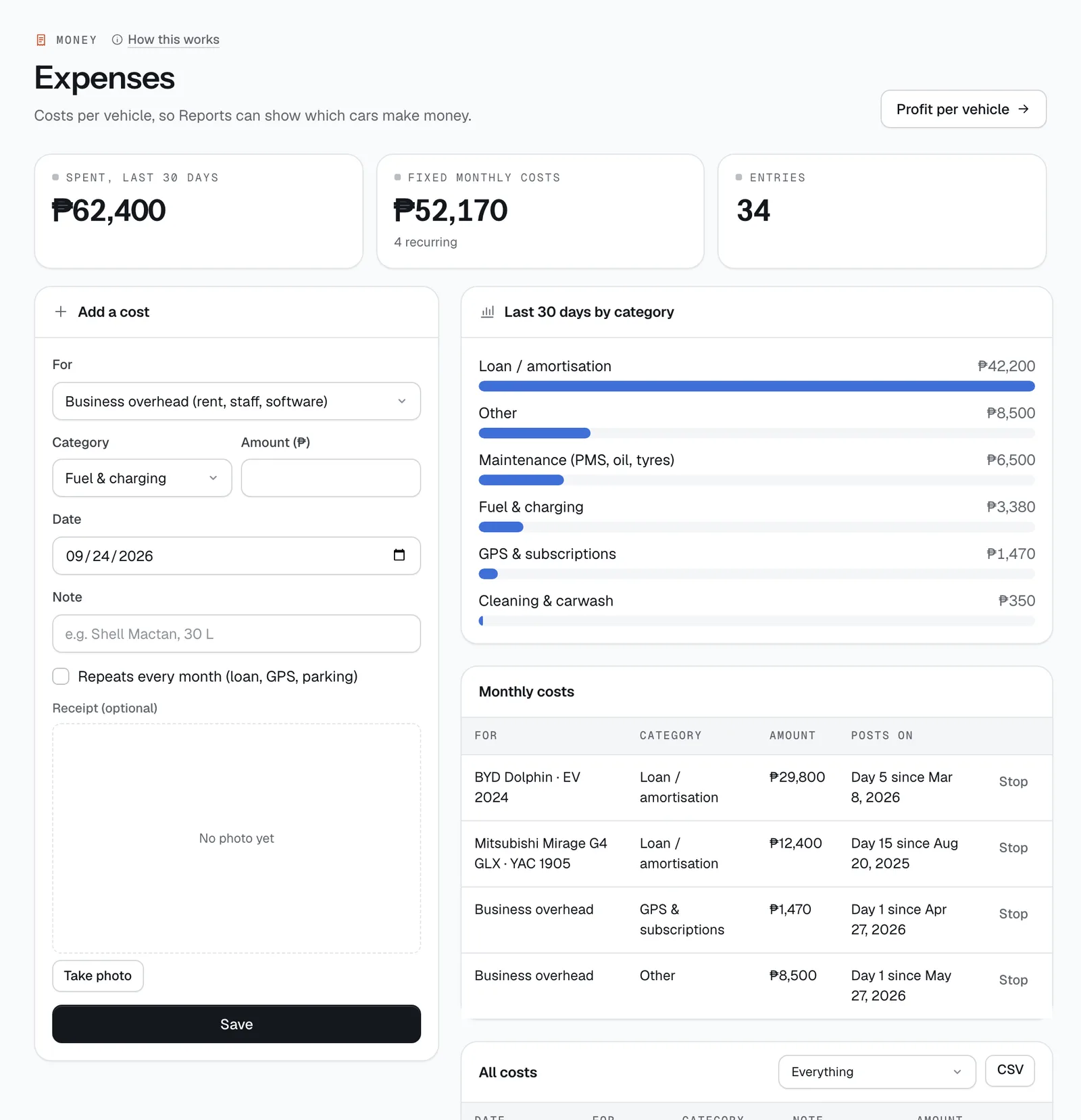
In Money → Expenses, Add a cost: choose For — a vehicle, or Business overhead for rent, staff and software — then the Category (fuel, repairs, maintenance, LTO registration, insurance, loan, parking and tolls, cleaning, GPS, other), Amount, Date and a note. Snap the receipt if you have it, and tap Save.
For a loan, GPS or parking fee, tick Repeats every month and pick the day (1–28): it posts itself each month until you tap Stop. All costs can be filtered by vehicle and downloaded with CSV.
- Add a cost
- Repeats every month
- CSV
Read the Overview
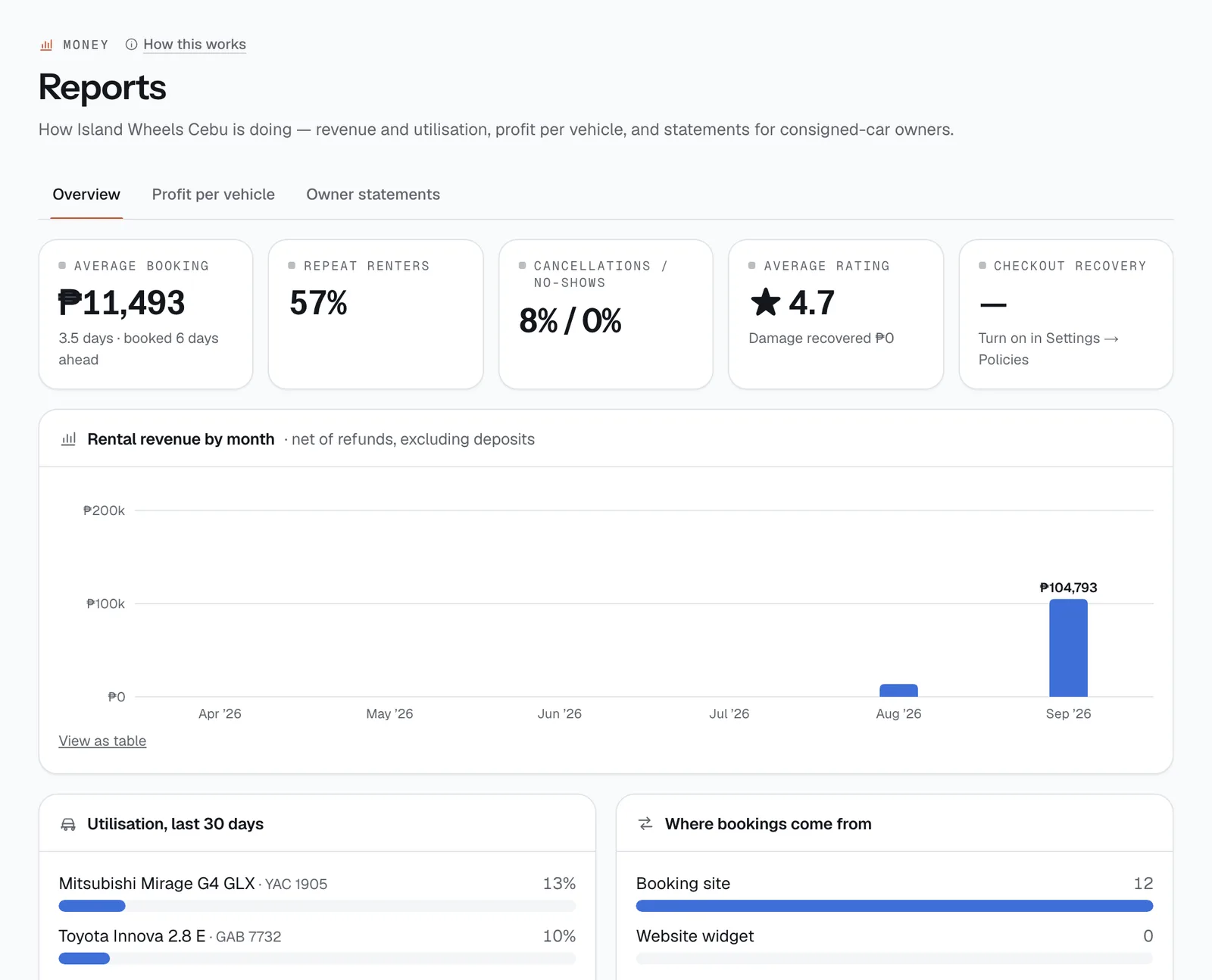
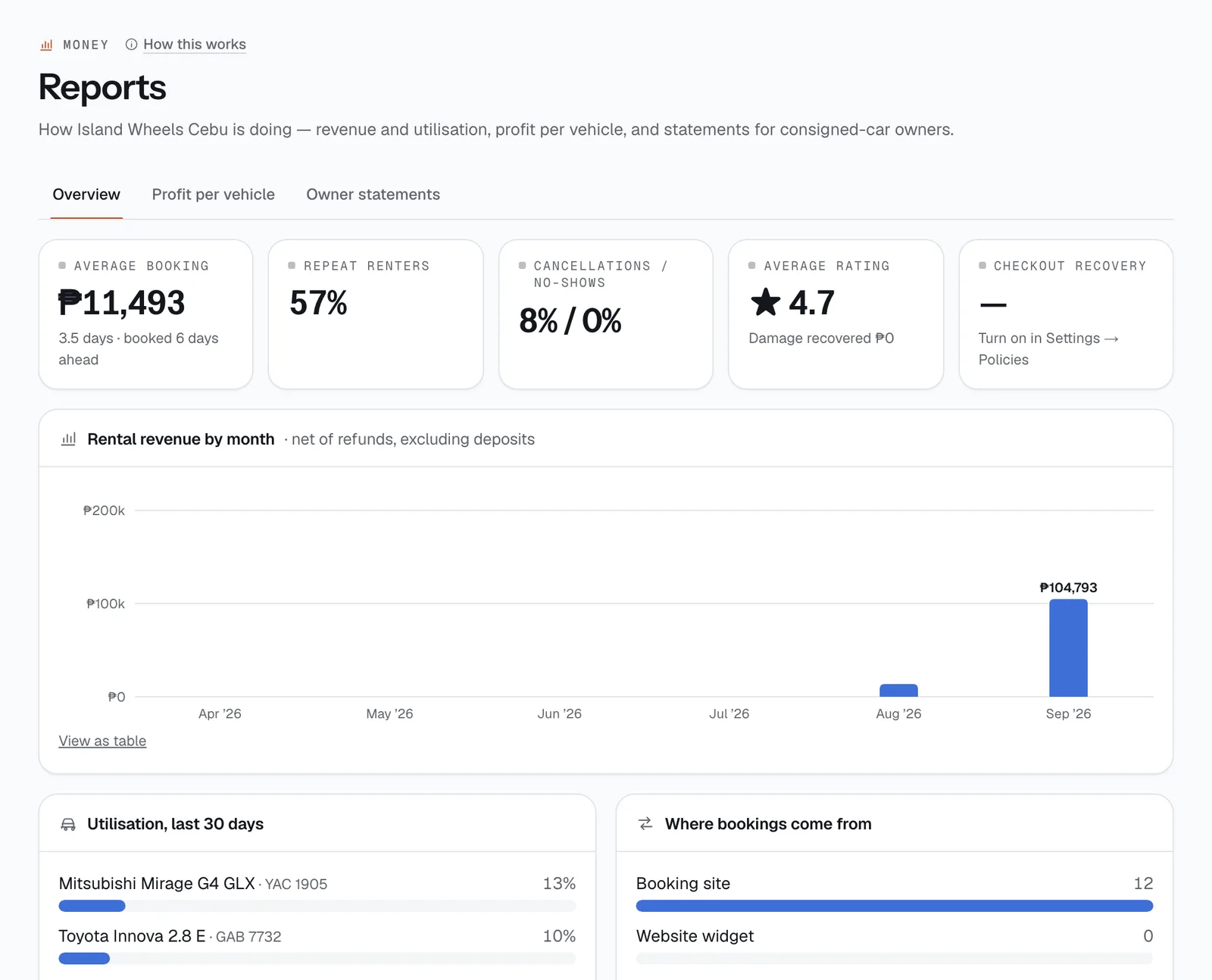
Money → Reports opens on Overview: average booking, repeat renters, cancellations and no-shows, average rating, and checkout recovery. Below: Rental revenue by month (after refunds, without deposits), each vehicle’s utilisation over the last 30 days, and where your bookings come from.
- Profit per vehicle
- Owner statements
- Rental revenue by month
See profit per vehicle
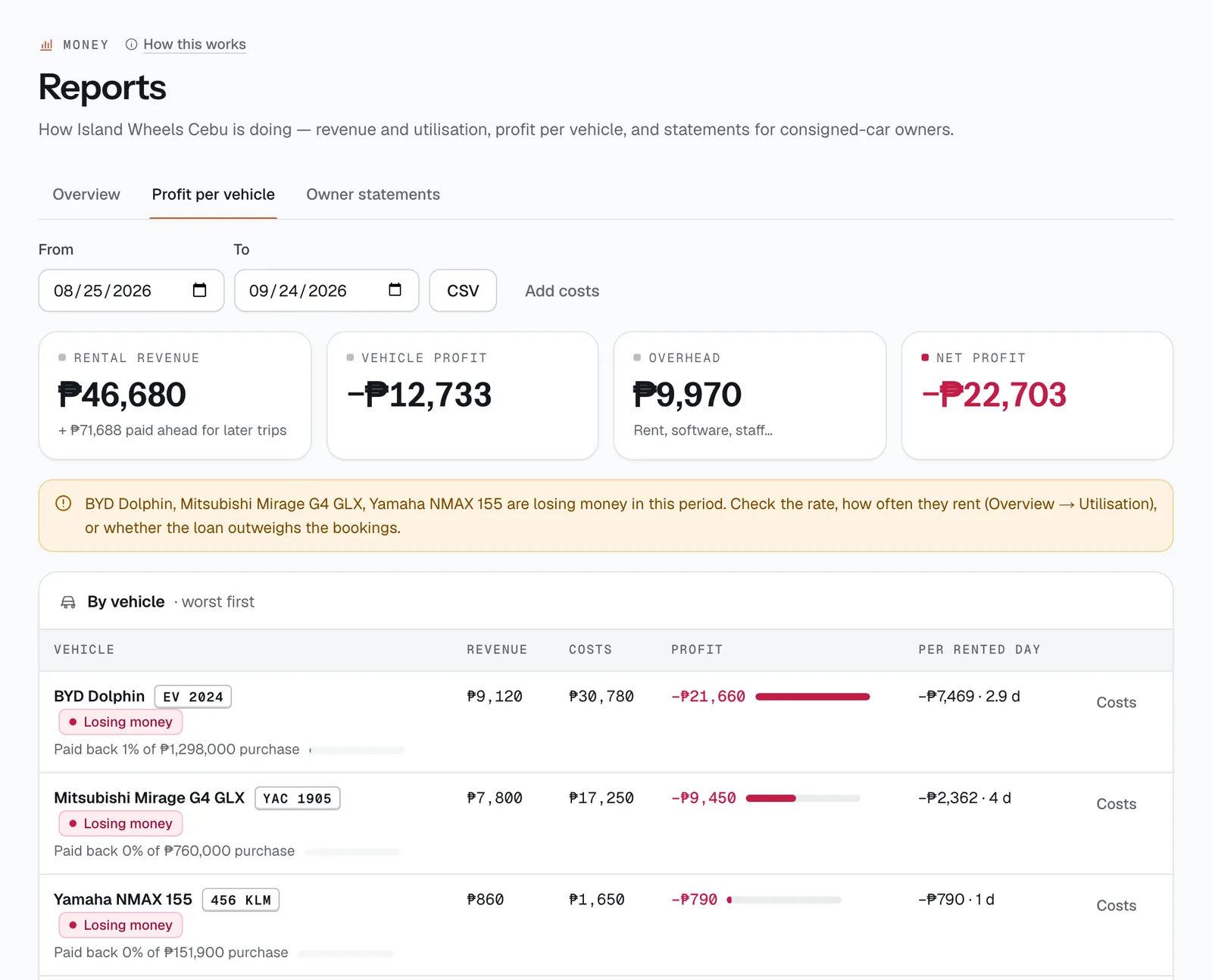
Open Profit per vehicle and set From and To to the month. For each vehicle you get revenue, costs and profit, worst first; Costs shows the breakdown. A vehicle that cost more than it earned is marked Losing money. The totals show vehicle profit, overhead and Net profit.
Revenue counts from the day each trip starts: deposits left out, refunds taken off, damage kept from deposits included. Costs are your expenses, repairs from the repair log, and the owner’s share for consigned vehicles. Tap CSV to download it.
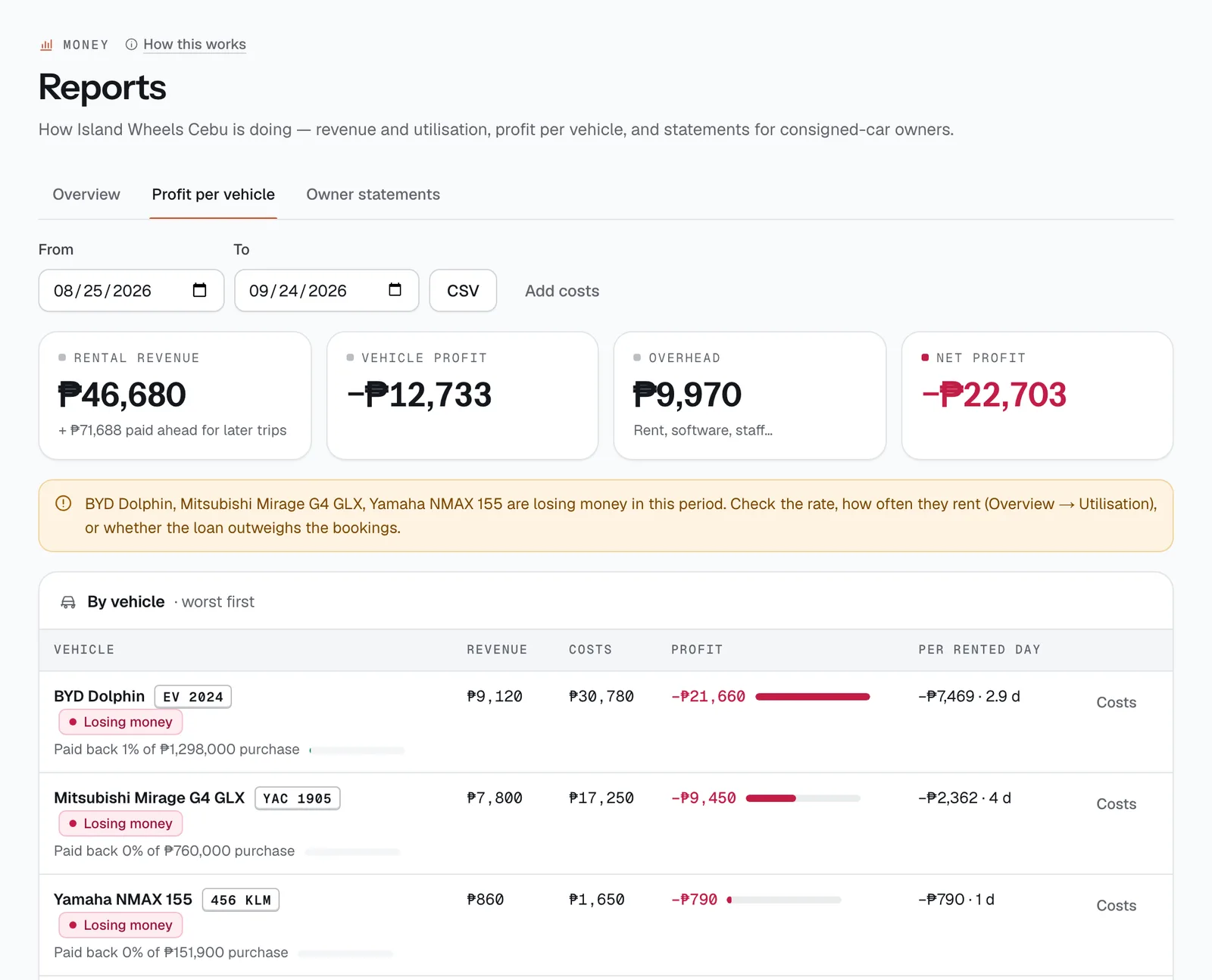
- Pick the month
- CSV
- Losing money
Send owner statements
Renting out vehicles that belong to someone else? On each one, fill in Owner (if consigned) and Owner’s share (%) (default 70%) in the vehicle’s details.
Owner statements then shows, per owner and date range, each rental, gross rental revenue, their share, repairs you didn’t recover from renters, and Payable to owner. Download each with CSV, or tap Print statements.
Hand it to your bookkeeper
A month’s pack is usually:
- the ledger — Payments & refunds → Export CSV;
- costs — Expenses → CSV;
- profit per vehicle and owner statements — Reports → CSV;
- any receipts they ask for, printed from the Receipts tab.
Easier still: invite them as an Accountant so they pull it themselves (Set up your team). For a full backup, the owner can download everything from Subscription → Export all data (JSON) or Export as CSV files.
Good to know
- Money in on Payments & refunds counts every peso received, deposits included. Reports’ rental revenue leaves deposits out, so the two won’t match — that’s expected.
- The ledger CSV has every entry since you started. Filter it by date in your spreadsheet.
- Xendit’s fees and payouts to your bank are in your Xendit account; CeeRent’s ledger shows what renters paid and what was refunded.
- More detail: Payments & refunds, Expenses, Reports.
Stuck on a step?
A person answers, in Filipino or English — Mon–Sat, 8:00–20:00 PHT.
- Get paid: online, by link and at the counterConnect your Xendit account, let renters pay by GCash, Maya, card, QR Ph or over the counter, take chat and phone bookings with a payment link, collect the rest at the desk and send refunds.15 min
- Returns, deposits and damage claimsCheck the vehicle back in, let CeeRent work out fuel, mileage, late and toll charges, release clean deposits at once, and handle damage with evidence the renter can see.12 min
- Set up your teamGive each person the right role, licence and branches, set refund limits, keep sign-in safe, and switch access off the day someone leaves.10 min