Returns, deposits and damage claims
Check the vehicle back in, let CeeRent work out fuel, mileage, late and toll charges, release clean deposits at once, and handle damage with evidence the renter can see.
- Time
- 12 min · 8 steps
- Plans
- Every plan. The AI spot-check uses one AI credit per booking; every plan includes AI credits each month.
- Where
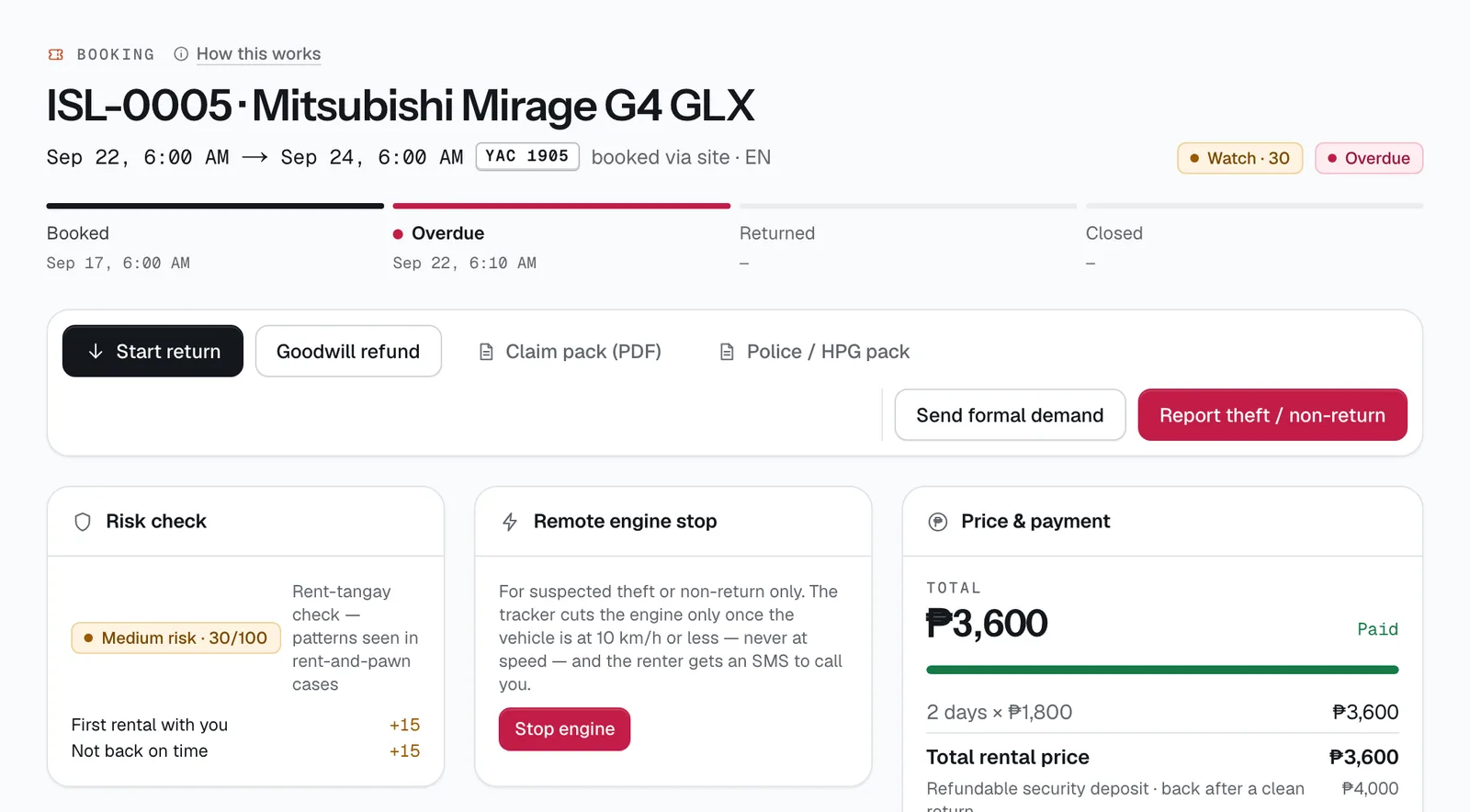
- Bookings → the booking → Start return
- Checked
- Sep 25, 2026
Take the same photos and readings
Take the same photo slots as at pickup, then record the fuel level, odometer, RFID balances and how many of each add-on came back. Nothing is filled in for you (the pickup reading shows under each one), and Still needed lists what's left: a reading nobody took never turns into a charge. In Condition:
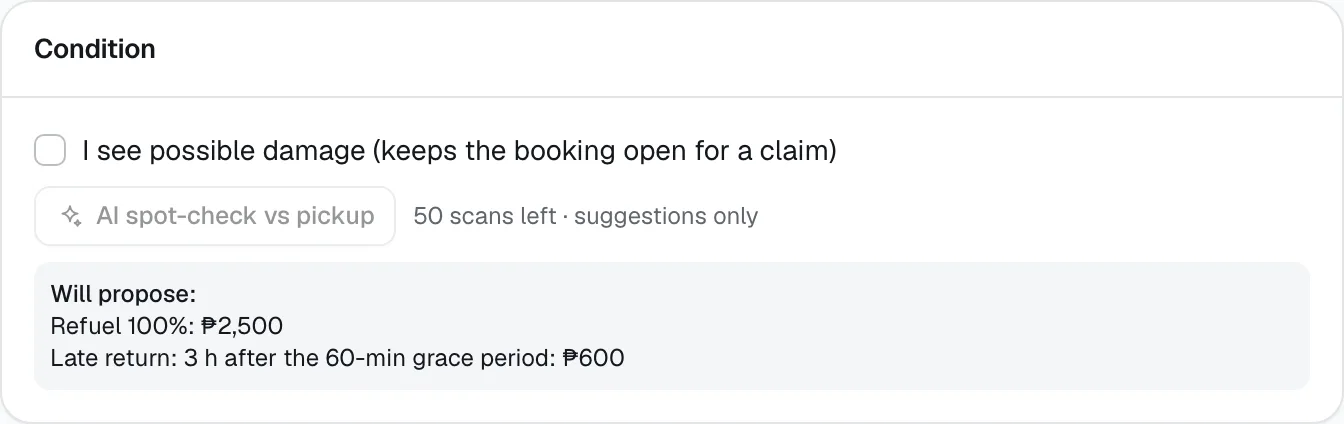
- Tick I see possible damage (keeps the booking open for a claim) if you spot anything.
- Tap AI spot-check vs pickup once all photos are in (one AI credit). It only suggests — nothing is charged unless a person adds it.
Will propose shows the charges CeeRent will suggest, and updates as you fill in the readings. Tap Submit return.
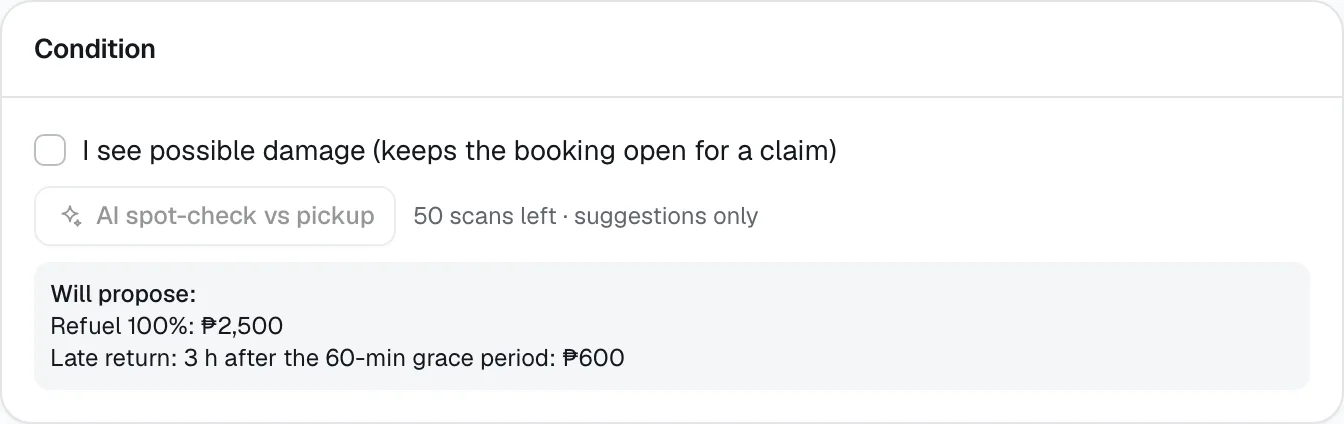
- I see possible damage
- AI spot-check vs pickup
- Will propose
Know what CeeRent proposes by itself
CeeRent compares the return with the pickup and proposes, using the booking’s own policy:
- Refuel or recharge — if the level is more than 5% lower: each % × your refuel charge (default ₱25 per %).
- Mileage — km over the allowance (300 km a day by default) × ₱8 per km, unless you offer unlimited mileage.
- Missing add-ons — 10 times the add-on’s price for each one not returned.
- Late return — the hourly rate for each hour after the grace period, never more than one day’s rate per day late, counted to the first return photo (so the time spent on the check, or waiting for signal, isn’t billed).
- Tolls — what was used from the Autosweep and Easytrip balances.
Clean return? You're done
If nothing is proposed, you didn’t tick possible damage and the AI flagged nothing, the booking closes by itself and the deposit is released straight away — a card hold is dropped, a paid deposit is refunded. The renter gets a thank-you message saying so.
Review the charges
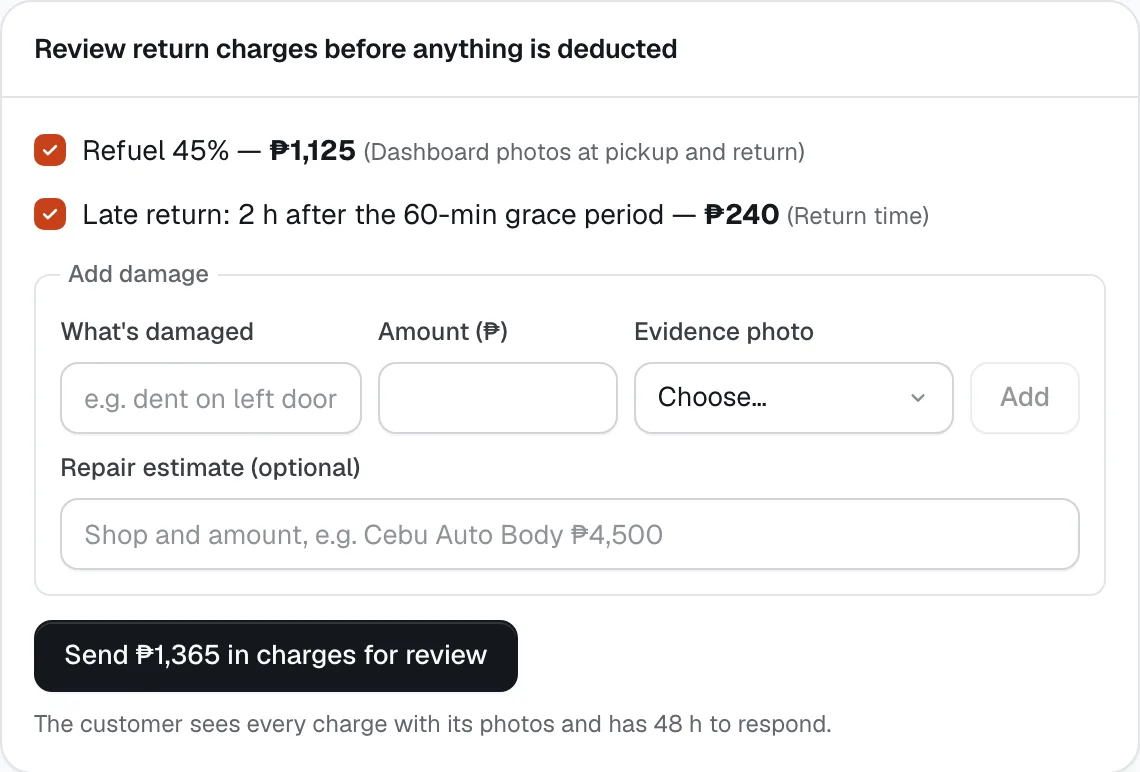
Otherwise the booking page shows Review return charges before anything is deducted. Untick any proposed charge you want to waive. To add damage, fill in What’s damaged, Amount (₱), the Evidence photo and, if you have one, a Repair estimate; tap Add.
Then tap Send … in charges for review, or Close as clean return if you waived everything. If the renter bought a protection plan, damage above its maximum out-of-pocket is taken off automatically.
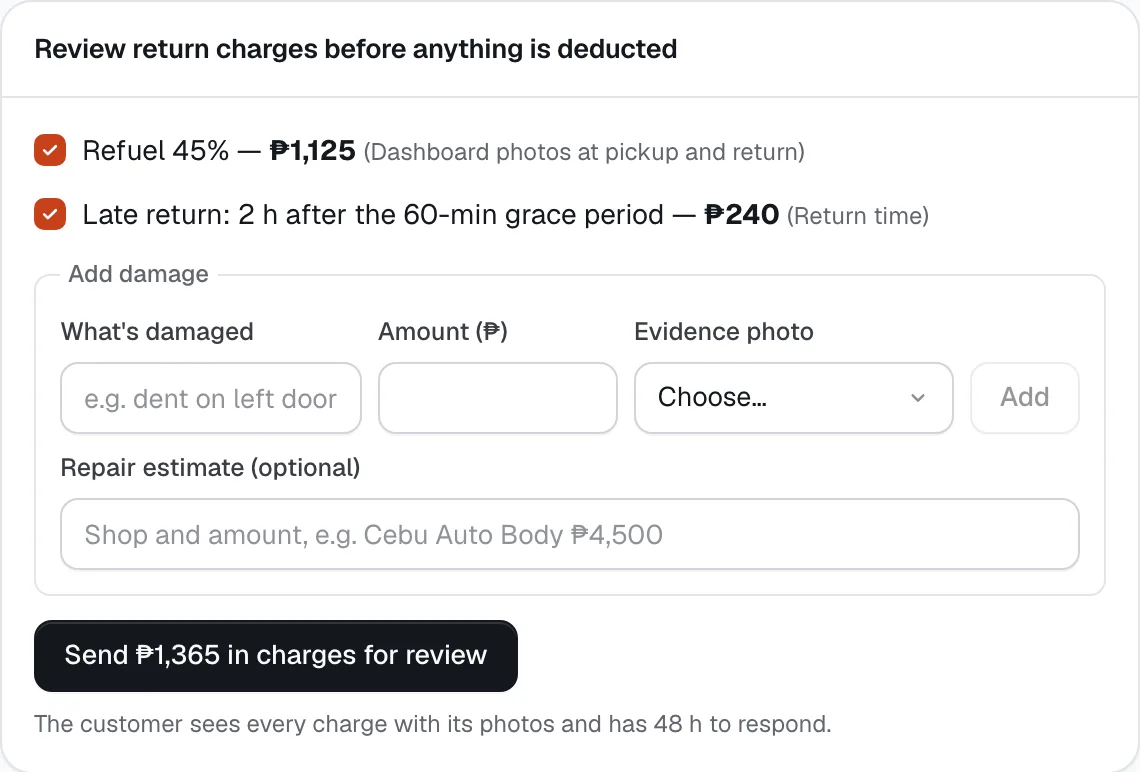
- Proposed charge
- Add damage
- Send the charges for review
Give the renter time to answer
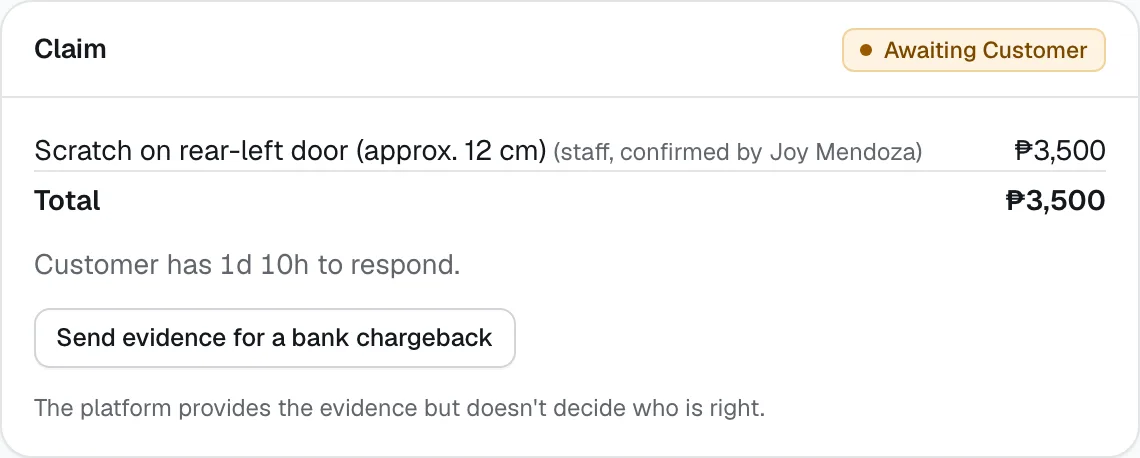
The renter sees every charge with the pickup and return photos side by side, how much comes out of their deposit and how much would be billed on top. They have 48 hours to Accept or Dispute (with a reason and a photo). The booking’s Claim card shows the time left.
When they accept, or don’t answer in time, the charges are taken from the deposit and the rest is released. Anything above the deposit is billed — send it with the booking’s Send payment link button.
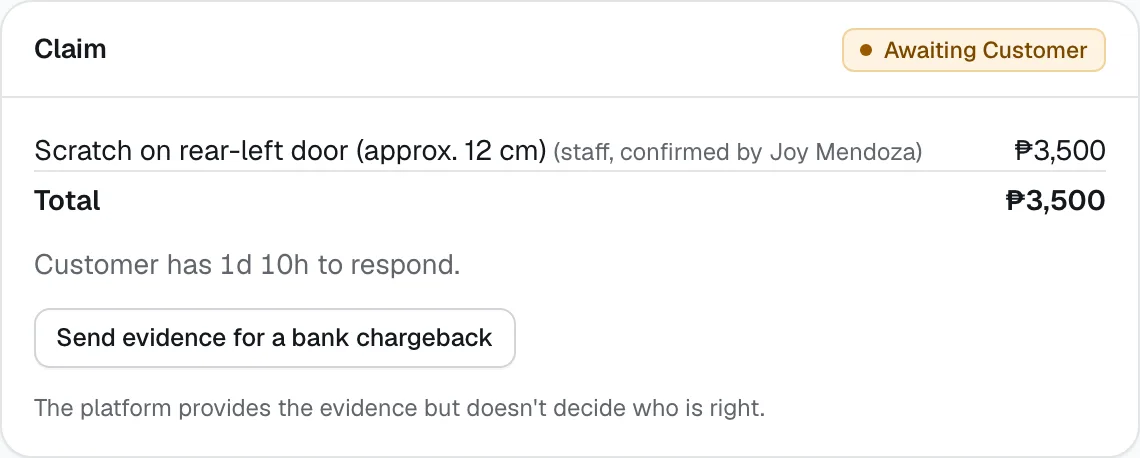
- Time left for the renter
- Send evidence for a bank chargeback
Decide a dispute
A disputed claim shows the renter’s comment. Choose Uphold, Reduce to… (and type the amount) or Waive, write the reason for your decision, and tap Decide. The renter is told the outcome and your reason.
If they still disagree, you can mark it Still disputed — settle outside platform. If they dispute the card payment with their bank, Send evidence for a bank chargeback sends the photos, signed agreement, claim and their replies to Xendit — once per claim. CeeRent gives you the evidence; it doesn’t decide who is right.
Keep your deposit promise
Renters see a deposit tracker with your promise — Given back within 24 hours by default, set in Settings → Policies → Deposits — counting down, and your real average release time next to it. A deposit past the promise shows in Today → Needs attention.
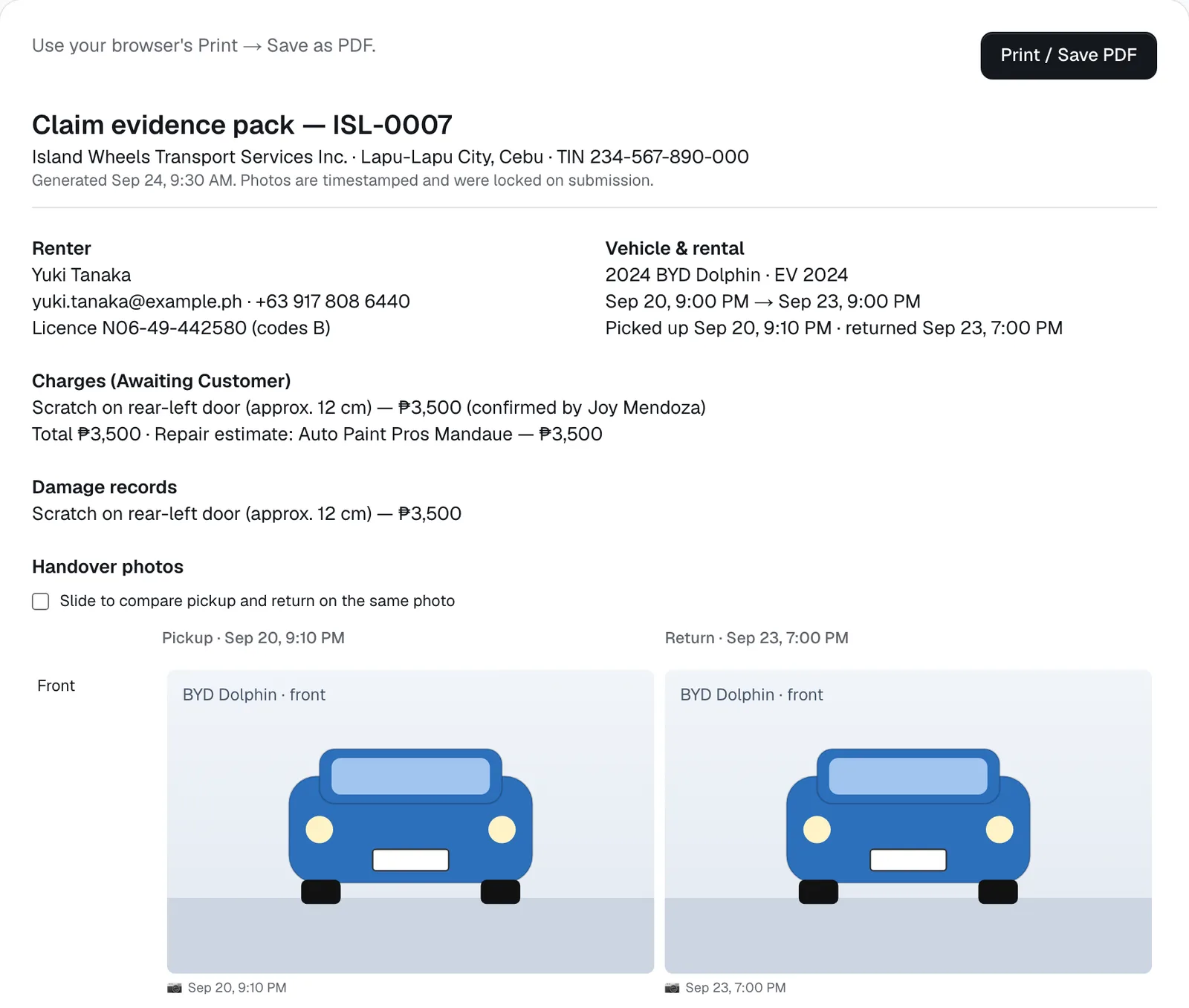
For an insurer, the police or a bank, tap Claim pack (PDF) on the booking: renter, vehicle, charges, damage, incidents, every handover photo, the GPS trail if tracked, and the signed agreement. Tap Print / Save PDF.
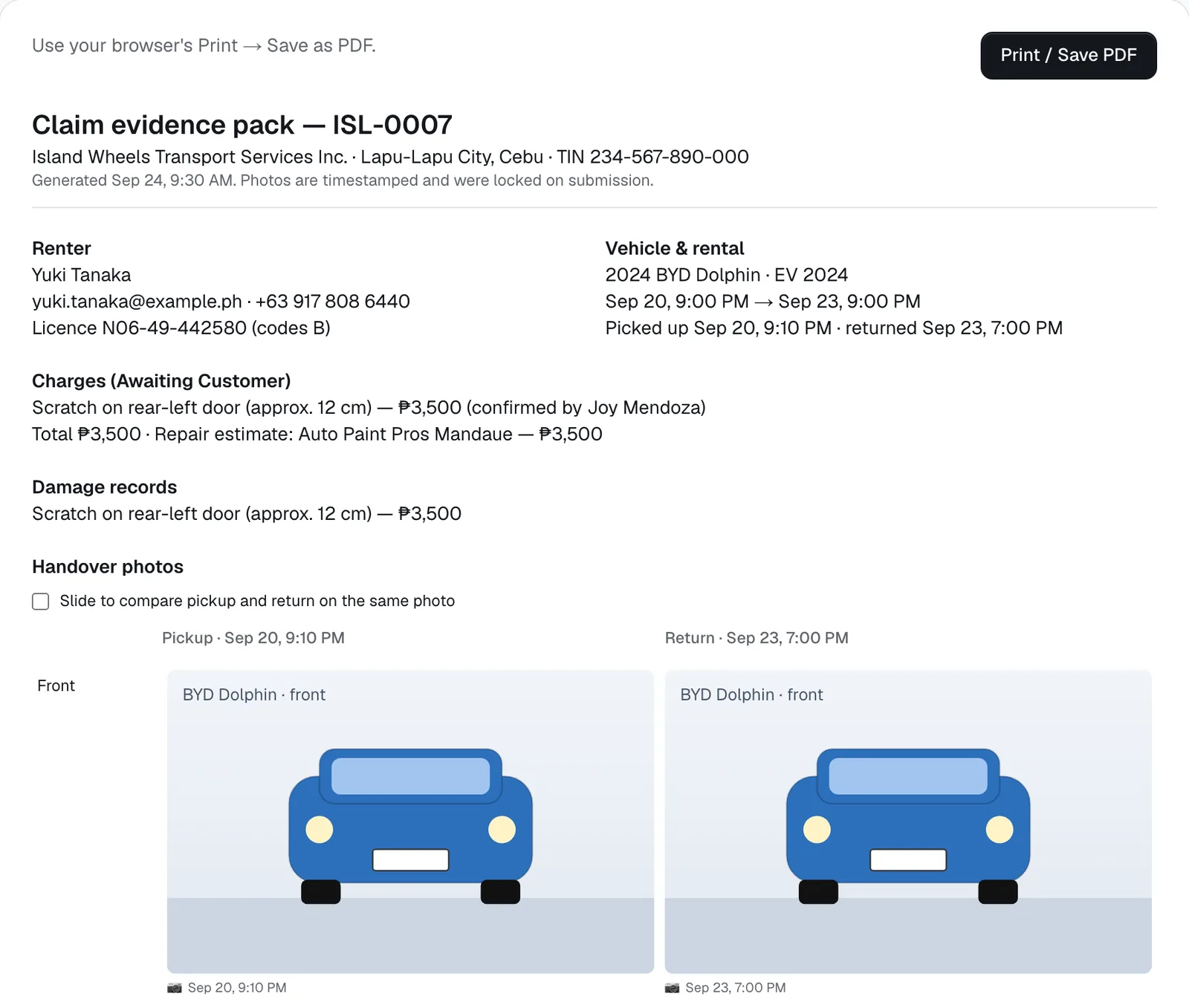
- Print / Save PDF
Good to know
- Nothing is taken from a deposit until the renter accepts, their 48-hour window passes, or you decide a dispute.
- You can change the grace period, Damage response window, refuel charge and mileage rules in Settings → Policies. Each booking keeps the rules it was made under.
- Damage goes into the repair log in Claims & repairs. When it’s fixed, tap Mark repaired with the real cost — it counts in profit per vehicle.
Stuck on a step?
A person answers, in Filipino or English — Mon–Sat, 8:00–20:00 PHT.
- Your first pickup, step by stepApprove the renter's licence, collect what's owed, get the agreement signed, photograph the vehicle and hand over the keys — with a record you and the renter both agreed to.12 min
- Get paid: online, by link and at the counterConnect your Xendit account, let renters pay by GCash, Maya, card, QR Ph or over the counter, take chat and phone bookings with a payment link, collect the rest at the desk and send refunds.15 min
- Close the monthCheck every peso in and out, pull your receipts, log your costs, see which vehicles made money, and hand your bookkeeper clean CSV files.20 min