Import from spreadsheets
Bring in the vehicles, customers and future bookings you already track in a spreadsheet, so you don’t retype them. Save your sheet as CSV and paste or upload it.
- Where
- Workspace → Import from spreadsheets
- Who can use it
- Owners and managers.
- Plans
- Every plan. Imported vehicles count toward your vehicle slots.
- Checked
- Sep 25, 2026
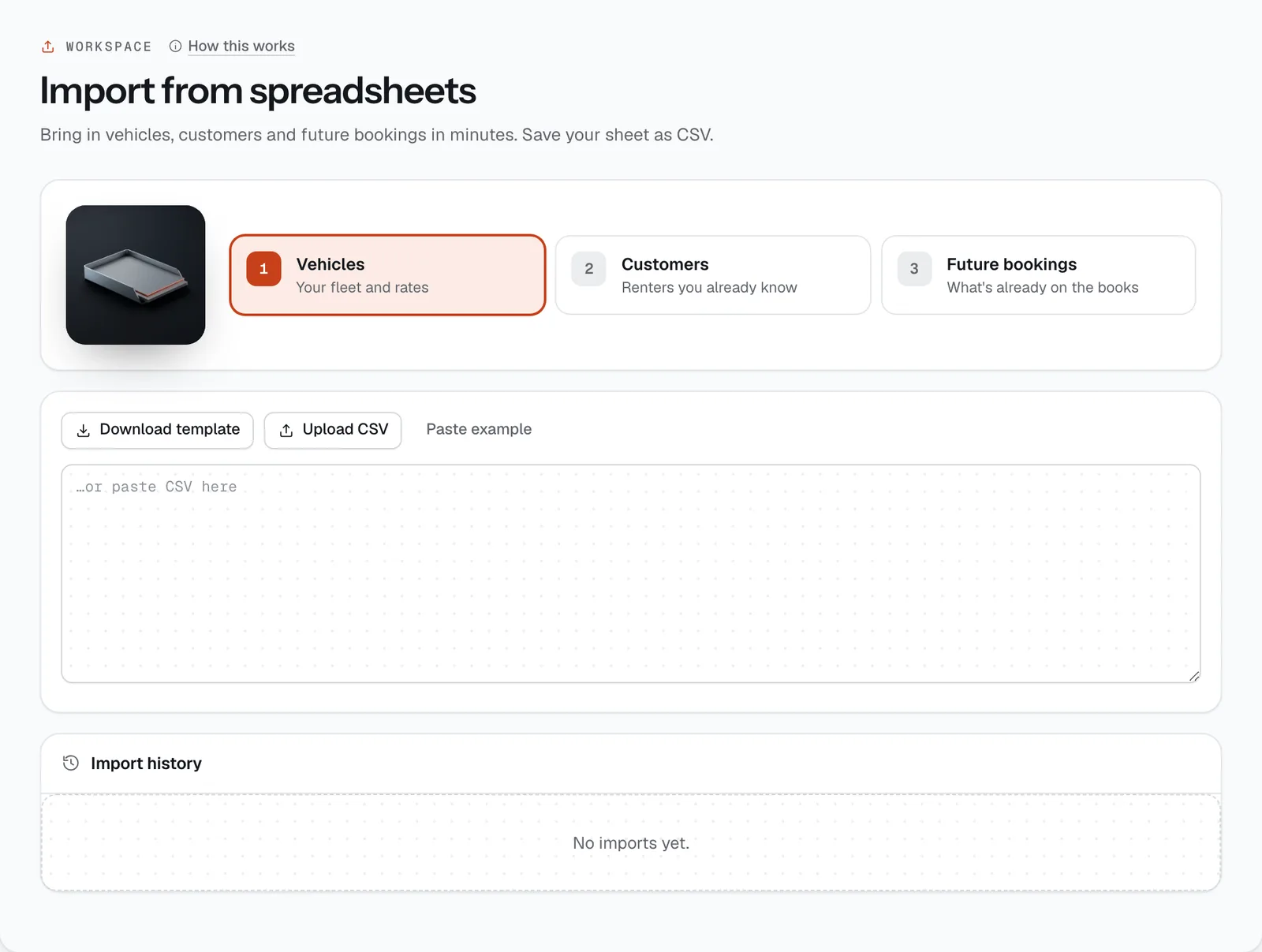
What you can do
- Pick what to import: Vehicles, Customers or Future bookings. Do them in that order.
- Get the exact columns with Download template, or see a filled-in sample with Paste example.
- Add your data with Upload CSV, or paste it into the box.
- Check the preview of the first 5 rows, then press Import … rows.
- Read which rows failed and why, and see every past import under Import history.
How it works
- 1 to 500 rows at a time. Bigger sheets? Split them into several files.
- Each row is imported on its own. A row with a problem is skipped completely (nothing half-saved) and the rest still go in.
- The result says Imported 8 of 10, with one line per failed row, like “Row 4: A vehicle with this plate already exists.” Row numbers match your spreadsheet (the header is row 1). Fix those rows and import just them again.
- A step shows a tick once something has been imported for it. Each import is also recorded in the audit log.
- Save from Excel or Google Sheets as CSV (comma-separated). Keep the header row exactly as in the template.
Vehicles template
Columns: type, make, model, year, plate, color, seats, transmission, fuel, dailyRate, hourlyRate, deposit, odometer
type:carormotorcycle(anything else counts as a car).plate: required, at least 3 characters, and not already in your fleet.dailyRate: required, more than 0.- If left empty: colour White, year this year, 5 seats for a car and 2 for a motorcycle, automatic, gasoline (
dieselandelectricalso work), hourly rate = daily rate ÷ 8, deposit ₱0, odometer 0.
Imported vehicles go to your first branch, are listed for booking, and get placeholder pictures until you upload real photos. The first oil-change reminder is set 5,000 km after the odometer. Add registration and insurance dates afterwards in Vehicles. Each vehicle uses a slot, and the import stops adding vehicles once your slots are full.
Customers template
Columns: name, email, phone, licenceCodes, tier
email: required and valid. An email you already have isn’t added twice; that row updates the existing customer’s tier and licence codes instead.name(at least 2 letters) andphone(at least 10 digits) are required for new customers.licenceCodes: restriction codes likeA B, separated by spaces,;or|.tier:trustedorvip. Anything else is Standard.
Imported customers still upload their licence and get verified before their first pickup.
Future bookings template
Columns: plate, customerEmail, start, end, paidBy
platemust match a vehicle you already have, andcustomerEmaila customer you already have. That’s why vehicles and customers come first.startandend: date and time, like2026-10-10T09:00.paidBy:cash(if empty),gcash,maya,card,qrph,otcorbank.
Each booking is created as paid in full by that method, with pickup at the branch and no driver. A row fails if the vehicle is already booked for those dates.
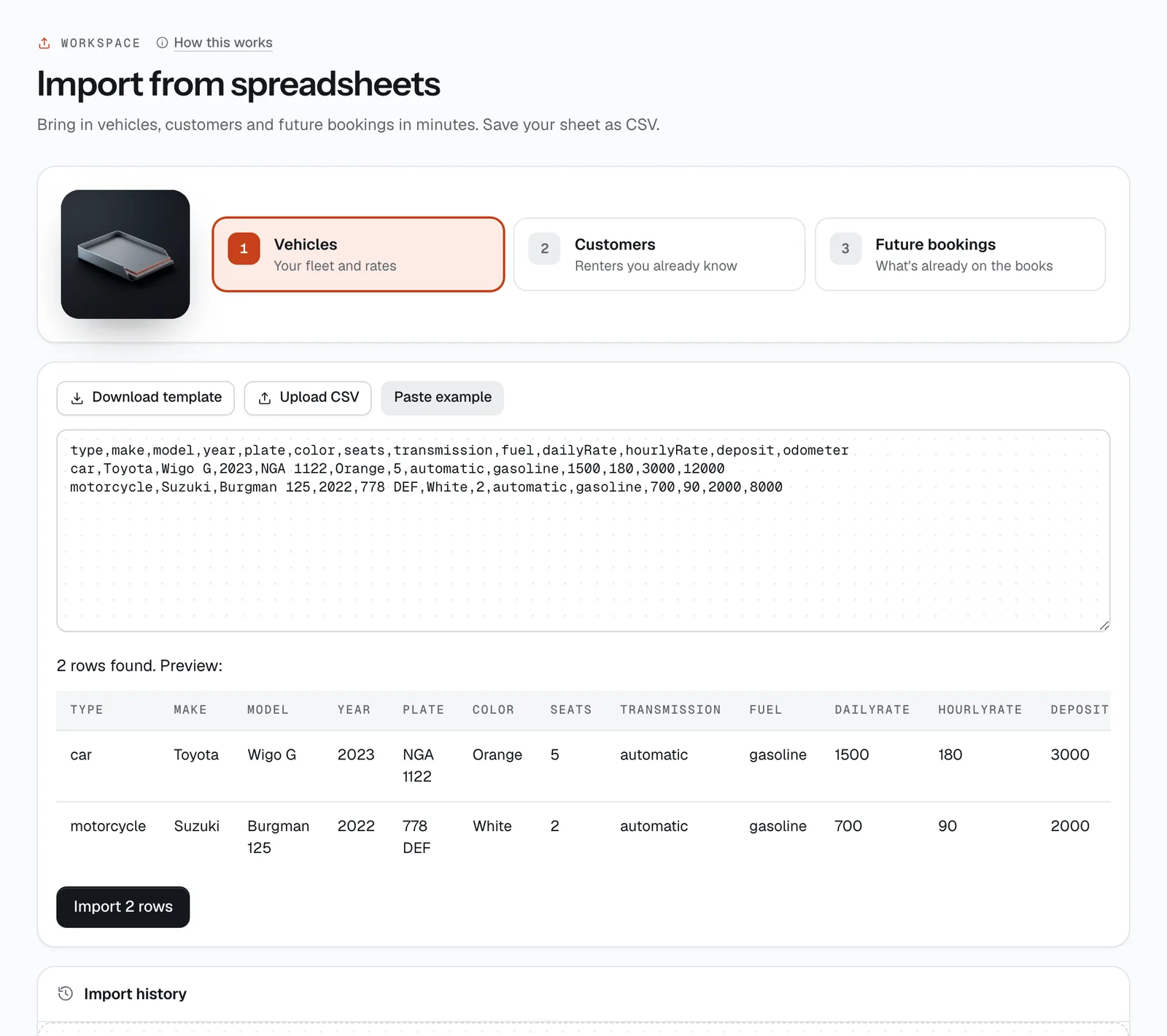
- Download template
- Import … rows
Still not sure how it works?
Ask a person, in Filipino or English — Mon–Sat, 8:00–20:00 PHT.