Dashboard · Operate
Incidents
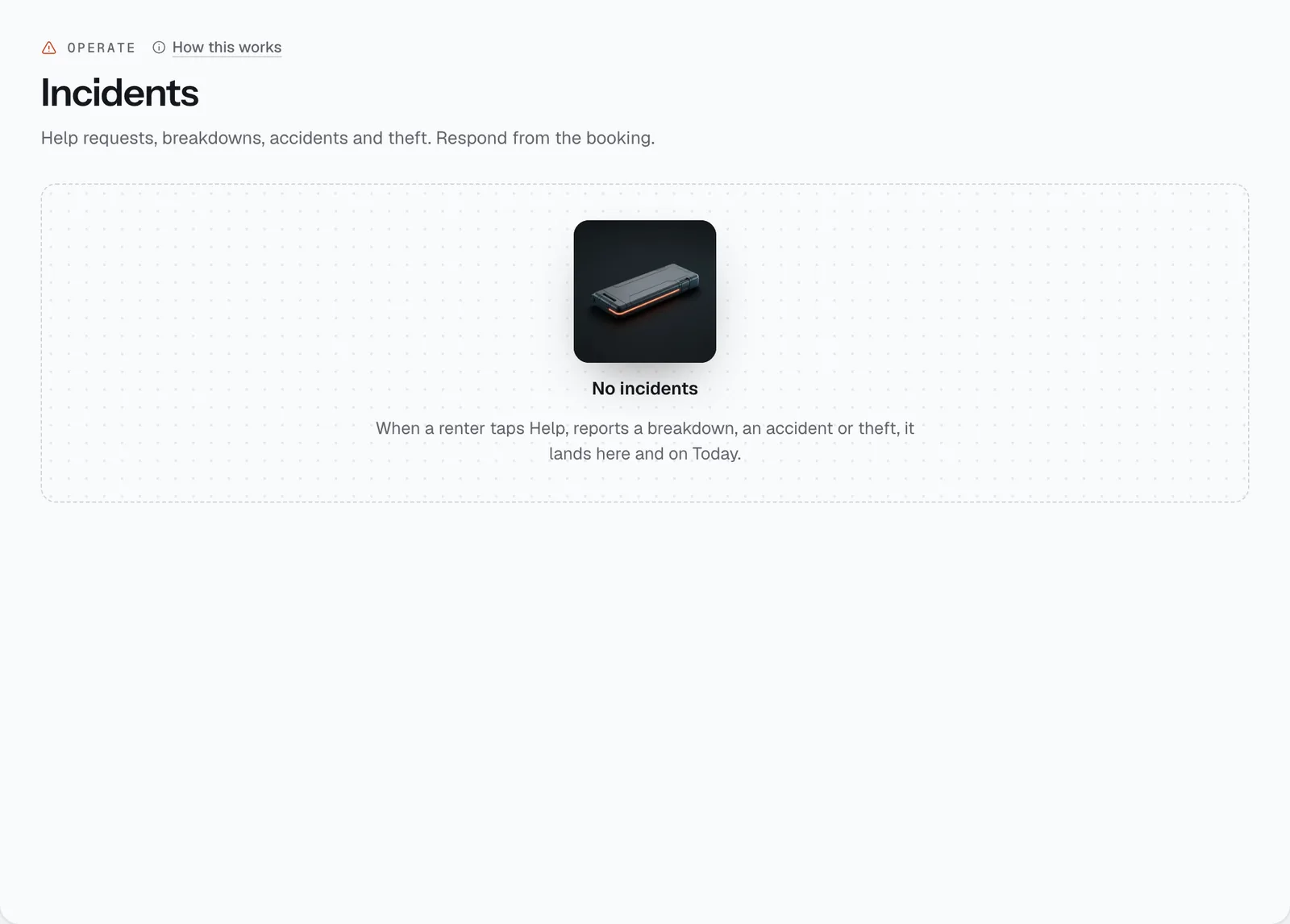
Where help requests, breakdowns, accidents and thefts land, so nobody on your team misses a renter who is stuck on the road.
- Where
- Operate → Incidents
- Who can use it
- Owners, managers and front desk.
- Plans
- Every plan.
- Checked
- Sep 25, 2026
What you can do
- See open incidents at the top, and filter Open, Resolved or All.
- Open the renter’s location with Map.
- Tap Respond to go to the booking and reply to the renter.
- Refund lost rental time when a breakdown cost the renter part of their trip.
- Mark an incident Resolved once it’s handled.
- Keep count: Open, and all-time totals for Breakdown, Accident and Theft.
How it works
- How incidents arrive. While a rental is on, the renter’s booking page has a Help button — they pick what happened (Breakdown — vehicle won’t start, Flat tyre, Warning light on the dashboard, Locked keys inside or Other — please call me) and their location is sent to you. Report an accident also takes a photo of the scene and an optional police report number. A theft incident is opened when you use Report theft / non-return on a booking.
- You get an alert with the renter’s name, phone number, the vehicle and where they are. Open incidents also show under Urgent on Today.
- Responding happens on the booking page, in the red incident card: type a reply (for example
replacement on the way
), optionally a refund amount for lost time, and tap Respond — the renter gets your message and the incident shows as responding. Tap Resolve to close it. - A lost-time refund is a manual refund, so front desk staff are limited to their refund limit.
Still not sure how it works?
Ask a person, in Filipino or English — Mon–Sat, 8:00–20:00 PHT.