Site Builder
Design your booking site — theme, colours, pages, photos and words — in drafts that renters never see, then publish when you’re happy. Every published version is kept, so you can go back in one step.
- Where
- Grow → Site Builder
- Who can use it
- Owners and managers — both can edit, publish and roll back. Other roles don’t see the Site Builder.
- Plans
- Every plan, with every theme.
- Checked
- Sep 25, 2026
What you can do
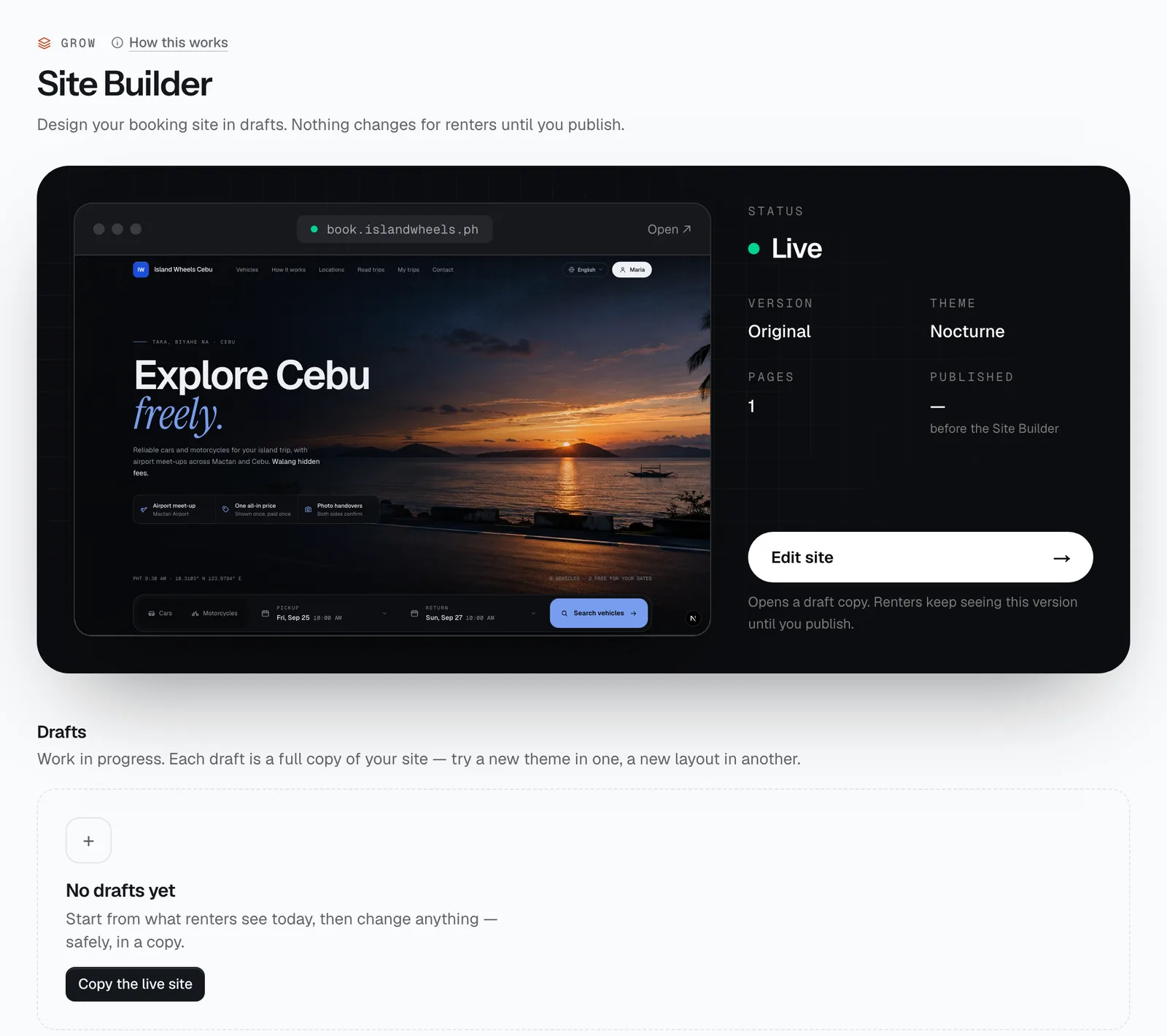
- See what renters see now, with its Version, Theme, Pages and when it was Published, and start changing it with Edit site (or Continue editing).
- Keep up to 10 drafts: Edit, Preview link, Duplicate, Rename or Archive each one, and Restore an archived draft.
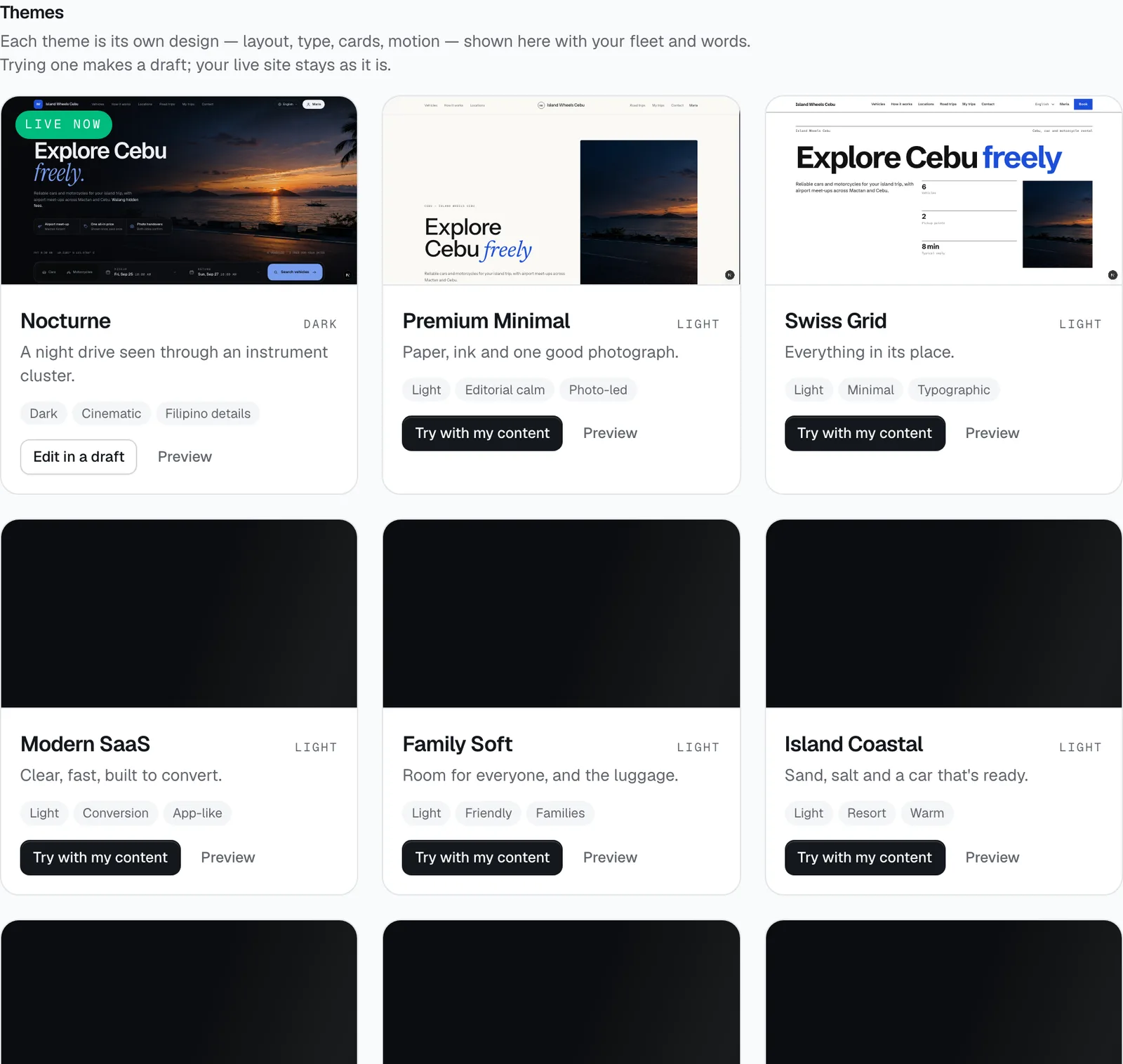
- Browse 19 themes filled with your own vehicles and words: Preview one on desktop, tablet and phone, or Try with my content to start a draft in it.
- Edit a draft in the full-screen editor: click any section, change its words and photos, add, move, hide or delete sections, and add pages.
- Send a Preview link to a partner or friend before anything goes live.
- Publish a draft once the checks pass, with an optional note for the history.
- In Publish history, Preview an old version, Compare with live, Copy into a draft or Roll back.
How it works
- Renters only ever see the published version. Drafts are private copies. Publishing switches everything at once — renters never see a half-updated site — and bookings in progress aren’t affected.
- A draft that started from an older version shows a note like “Started from version 3; version 4 has been published since. Publishing this replaces it.”
- You can keep 10 active drafts. Archive one to start another; archiving also stops its preview links working.
- Preview links open the draft (or an old version) with your real vehicles and prices, on a separate address that search engines don’t list. Tapping Preview link copies the link and opens it. It works for 7 days.
- The first time you publish, CeeRent keeps the site you had before as version 1 (“Original site kept”), so you can always get back to it.
- Roll back puts an older version live straight away. Nothing is deleted: the version you replaced stays in the history, and your drafts are untouched. Copy into a draft takes an old version back into the editor without publishing anything.
- Compare with live puts an old version and the live site side by side on any device, lists every difference in plain words, and lets you copy single sections from the old version into one of your drafts.
- Business details — vehicles, prices, branches, reviews, policies — aren’t copied into the design. Sections show them live, so a price change in Vehicles appears on your site without republishing.
- The themes: Nocturne, Premium Minimal, Swiss Grid, Modern SaaS, Family Soft, Island Coastal, Wayfarer, Retro Roadtrip, Vows, Fiesta, Neo-Brutalist, Trail, Dark Tech, Bold Editorial, Luxury, Futuristic, Motorsport, Chauffeur and Classic. The one you use now is marked Live now.
Editing in the studio
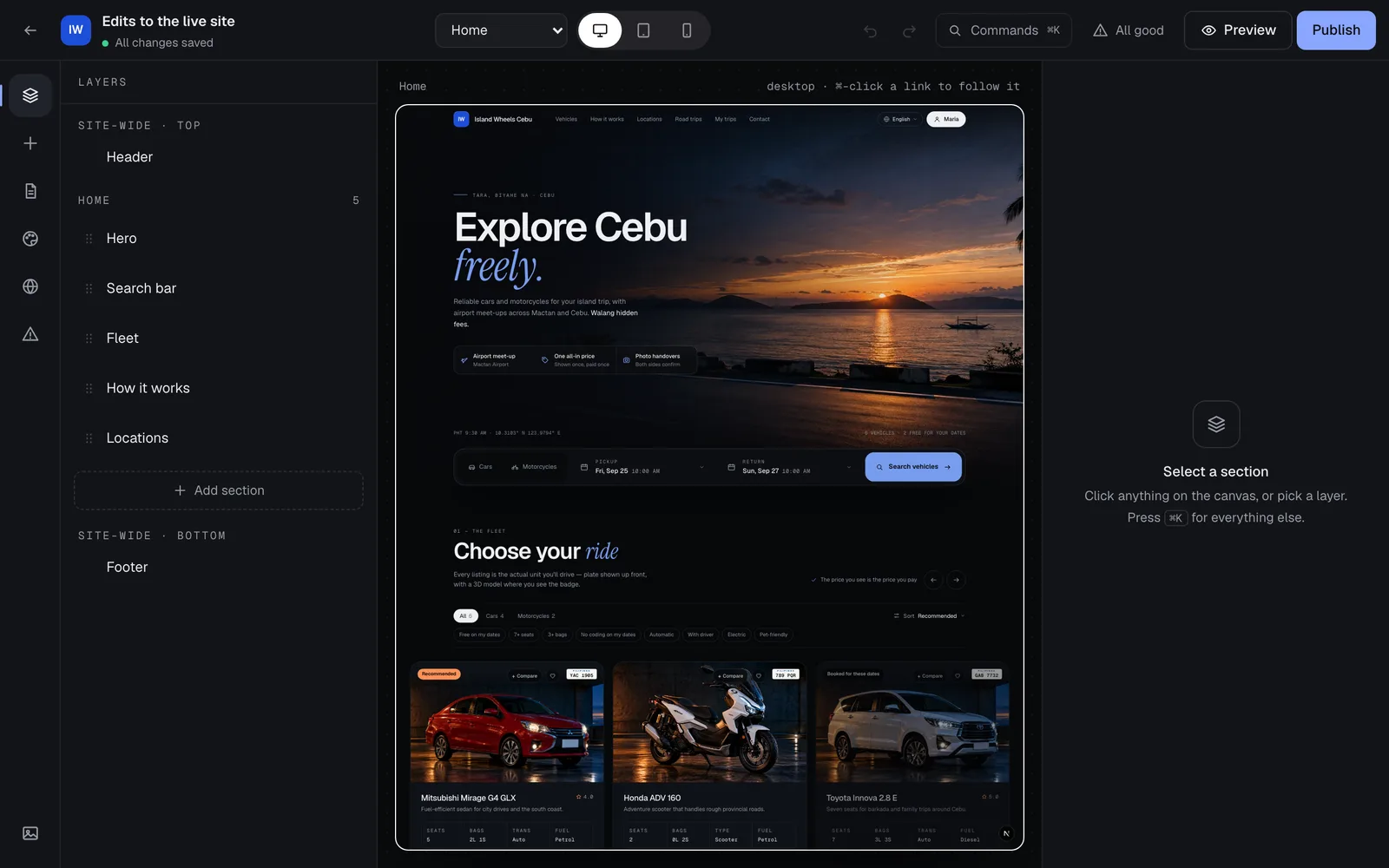
Edit on a draft opens the studio, a full-screen editor. Along the top: the draft’s name (tap to rename), whether your changes are saved, a page picker, a desktop / tablet / mobile switch, undo and redo, Commands, the checks, Preview and Publish. The page itself sits in the middle; the section you selected is on the right.
On the page. Click any section to select it. A small toolbar appears with Move up, Move down, Duplicate, Hide and Delete. Text you can change underlines when you point at it: double-click it to type over it — Enter keeps it, Esc cancels. Links don’t navigate while you edit; hold ⌘ (Ctrl on Windows) and click to follow one.
On the right (the inspector), for the selected section:
- Layout — the theme’s other layouts for this section, when it has them.
- Colours — Base, Soft, Invert or Brand (filled with your brand colour).
- Show on — turn the section off on desktop, tablet or mobile; Hidden keeps it in the draft but hides it from renters.
- Link name — a short name (like
fleet) so menus and buttons can jump to this section. - Content — the words, photos, buttons and lists for that section.
- Duplicate, Make reusable (edit it once and it changes on every page that uses it; Detach makes a copy yours again) and Delete.
The panels on the left:
- Layers — the page’s sections in order; drag to reorder, or hide one. The header, announcement bar and footer are shared by every page.
- Add section — ready-made sections by kind: Hero, Search bar, Fleet, Featured vehicle, Packages, How it works, Reviews, Why book with us, Numbers, Ways to pay, FAQ, Call to action, Text, Image + text, Gallery, Road-trip guides, Gift vouchers, Timeline, Locations, Contact and Spacer. New sections go after the one you selected. Some fit once per page (Hero, Fleet), and the Search bar only on the home page.
- Pages — add an About, Contact or Blank page (up to 30 pages). Each page’s Settings has its Title, Address (lowercase letters, numbers and dashes; From title fills it in), a search result title (60 characters) and description (160), Hide from search engines, Hidden page and Delete page. Vehicle pages is one template for every vehicle: choose its layout (when the theme has more than one) and which blocks show — What’s included, Price calendar, Operator trust panel, Reviews, Road-trip cost planner and “Can I rent this?”.
- Theme & style — Switch to another theme (your pages, words, photos and menus stay; only the design changes, and undo brings the old one back). Set your Brand and Accent colours or Use brand settings; three contrast checks tell you if text will be hard to read. Themes that allow it also let you pick Fonts, Corners, Spacing, Buttons and Motion.
- Menus & SEO — the Main menu and Footer links (add, hide, reorder, choose where each goes), the Announcement bar above the header, the Site description for Google (160 characters) and the Share image people see when your link is posted on Facebook or Messenger (1200 × 630 works best).
- Checks — problems to fix before publishing, and tips that won’t block you.
Photos. The Media library (the picture icon at the bottom of the left rail) holds up to 200 of your images, next to a set of Stock photos. Upload takes JPEG, PNG or WebP and resizes it for fast loading on phones. Tap one of your uploads to change its name and alt text (a short description of the photo, read aloud to blind visitors and used by Google), or Remove it from the library — pages already using it keep showing it.
Saving. Changes save by themselves every few seconds (or press ⌘S / Ctrl+S). If the browser closes before a save lands, the next time you open the draft you can Restore them or Discard. If someone else saved the same draft meanwhile, you choose: Keep my version, Save mine as a new draft or Load their version (discard mine).
Shortcuts. ⌘K opens Commands — jump to a page or section, add a section, switch theme, preview or publish by typing. ⌘Z undoes, ⇧⌘Z redoes, ⌘D duplicates the selected section, Alt+↑/↓ moves it, Delete removes it (undo brings it back).
Publishing and checks
The checks run as you edit. The button in the top bar says All good, a number of tips, or how many things are to fix. Problems that block publishing include: the home page must have the Fleet section and show it on every device (it’s how renters start a booking), every page needs a title and a unique address, links must point to pages and vehicles that still exist, and pasted-in images aren’t allowed — use the media library. Tips that don’t block you include a missing share image, a page nobody links to, a menu with more than 9 links, or a brand colour that’s hard to see on the theme’s background.
Publish opens a review: Must fix (if anything), What changes compared with the live site, Worth a look, and an optional Note for the history (like “New Christmas promo banner”). Publish now saves the draft, checks it again, and makes it live as the next version number. If the draft is the same as the live site it says Nothing new to publish; if someone changed the draft after you reviewed it, it asks you to review again. If publishing fails, nothing changes on your live site.
- Add section
- Theme & style
- Preview
- Publish
- Try with my content
Still not sure how it works?
Ask a person, in Filipino or English — Mon–Sat, 8:00–20:00 PHT.