Design and publish your booking site
Pick a theme, edit your site in a draft, send a preview, publish when it's right — then add languages, your own domain or a widget, and share the link.
- Time
- 25 min · 8 steps
- Plans
- Every plan. Your own domain is included on Plus and a ₱299/month add-on on the others.
- Where
- Grow → Site Builder · Website & widget
- Checked
- Sep 25, 2026
Open the Site Builder
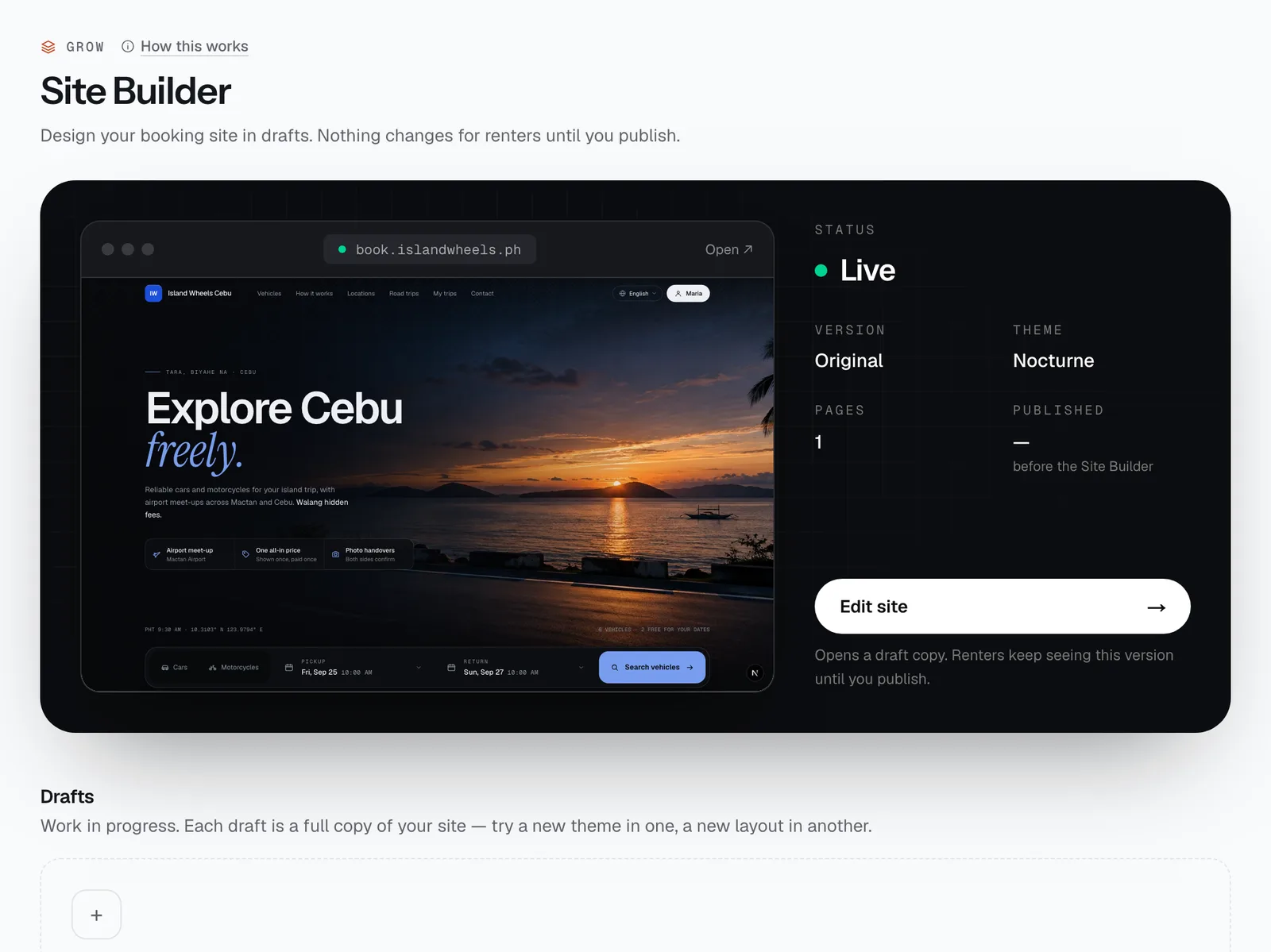
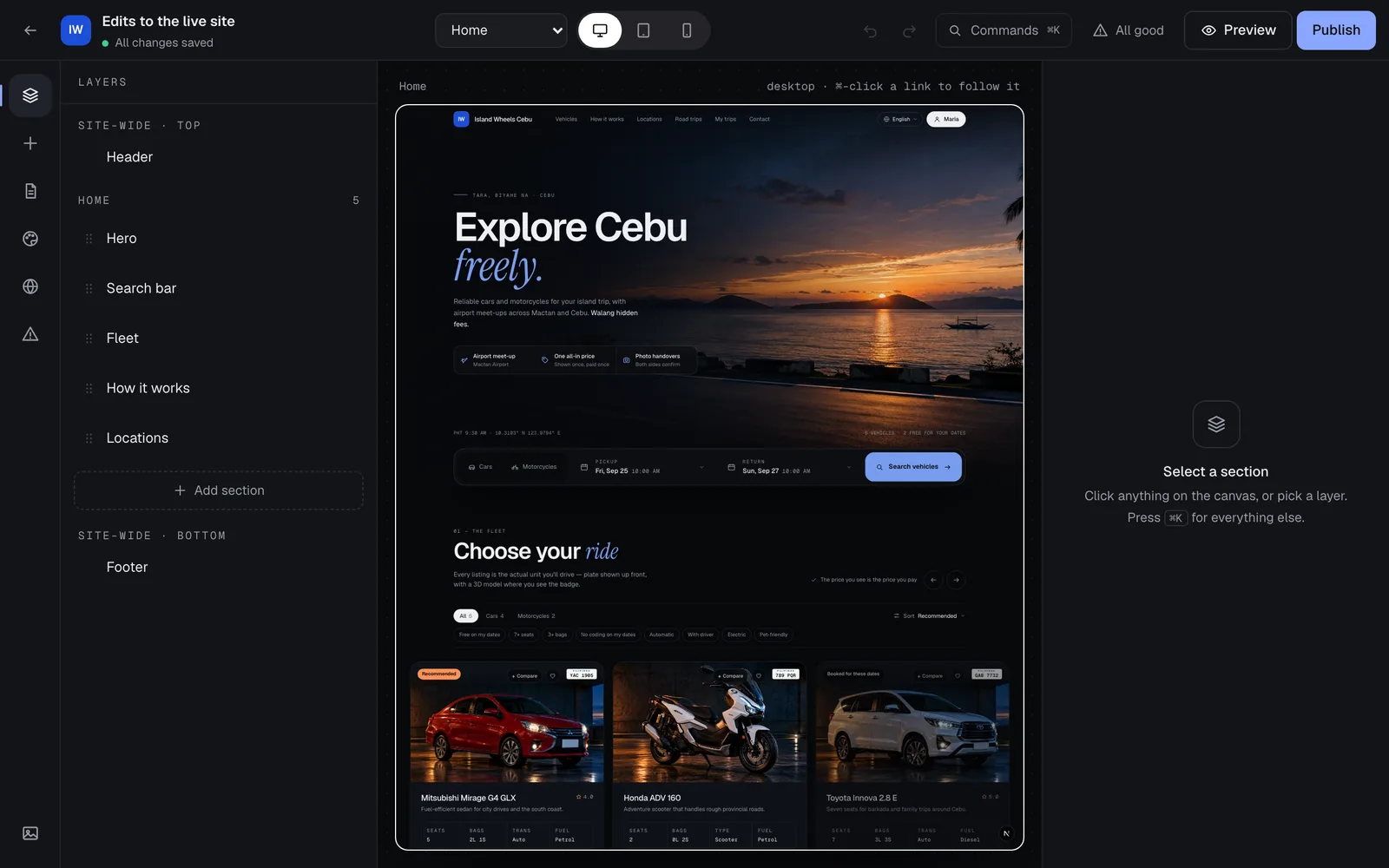
Grow → Site Builder shows your live site with its status, version, theme and number of pages. Tap Edit site: it opens a draft — a full copy of your site. Renters keep seeing the live version until you publish.
You can keep up to 10 drafts, e.g. one for a new theme and one for a Christmas promo. Owners and managers use the Site Builder.
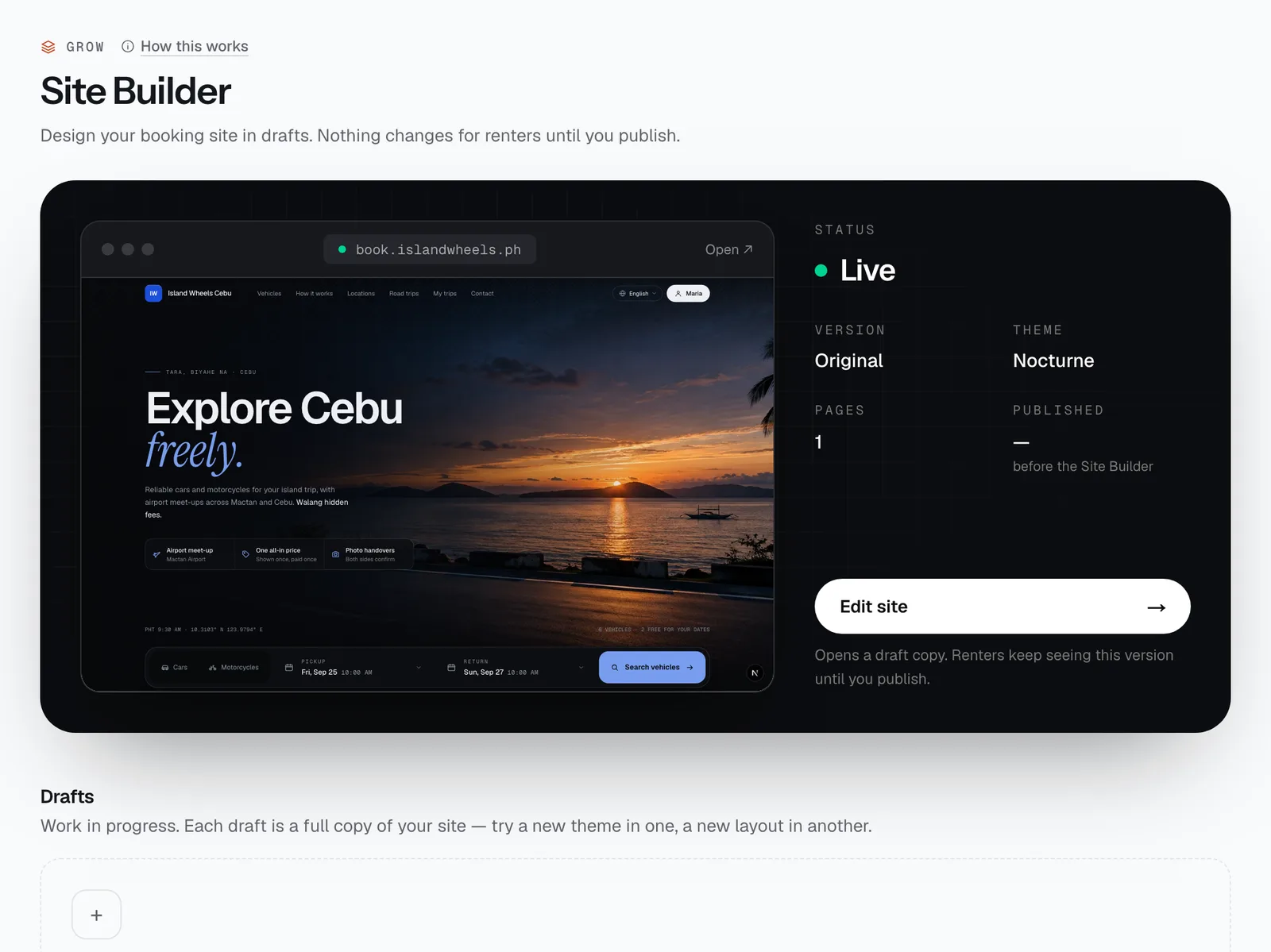
- Edit site
- Live or not
Try a theme with your own content
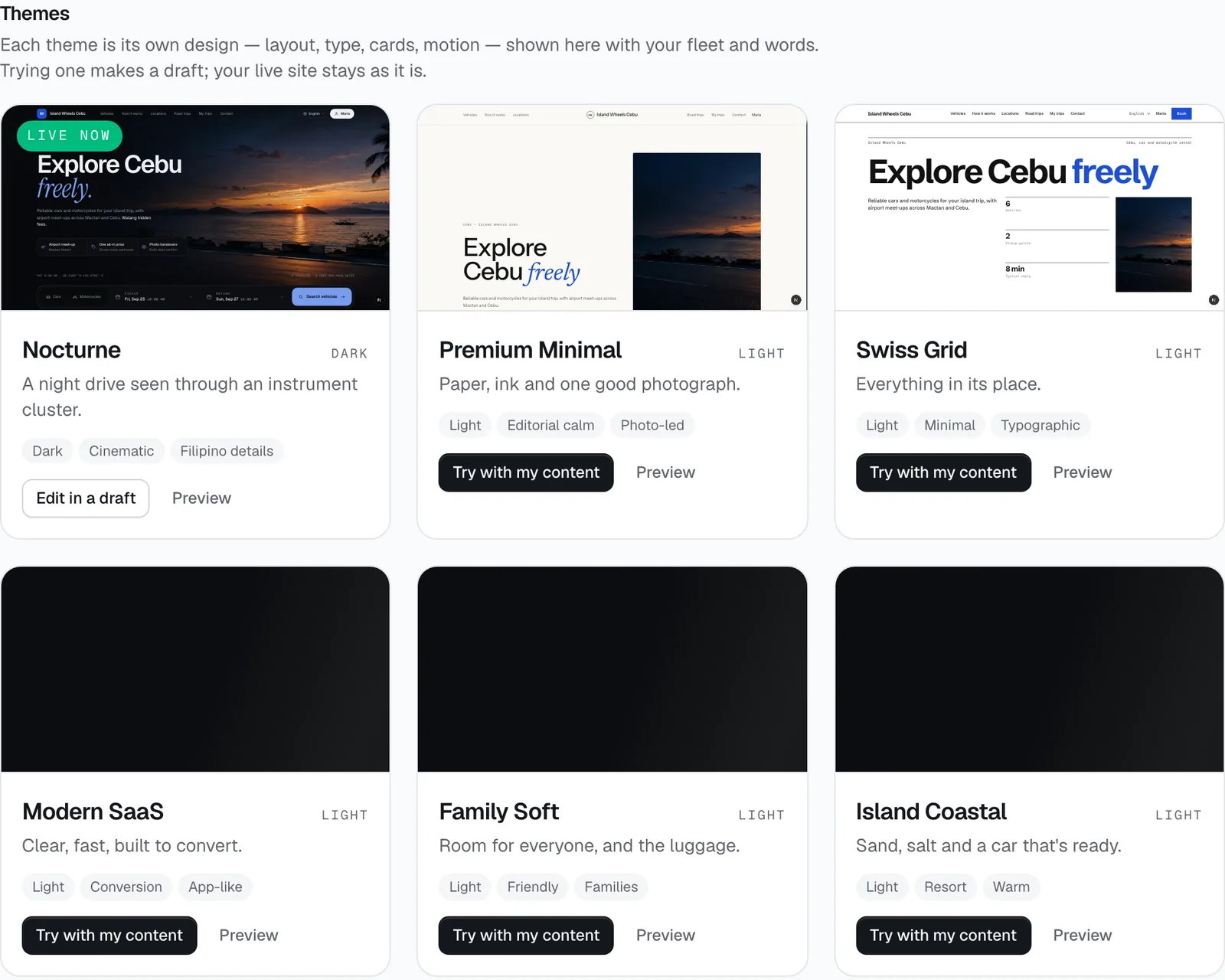
Under Themes, each card shows that design with your own vehicles and words. Preview opens it full screen on desktop, tablet and phone. Try with my content makes a new draft in that theme. The theme you use now is tagged Live now.
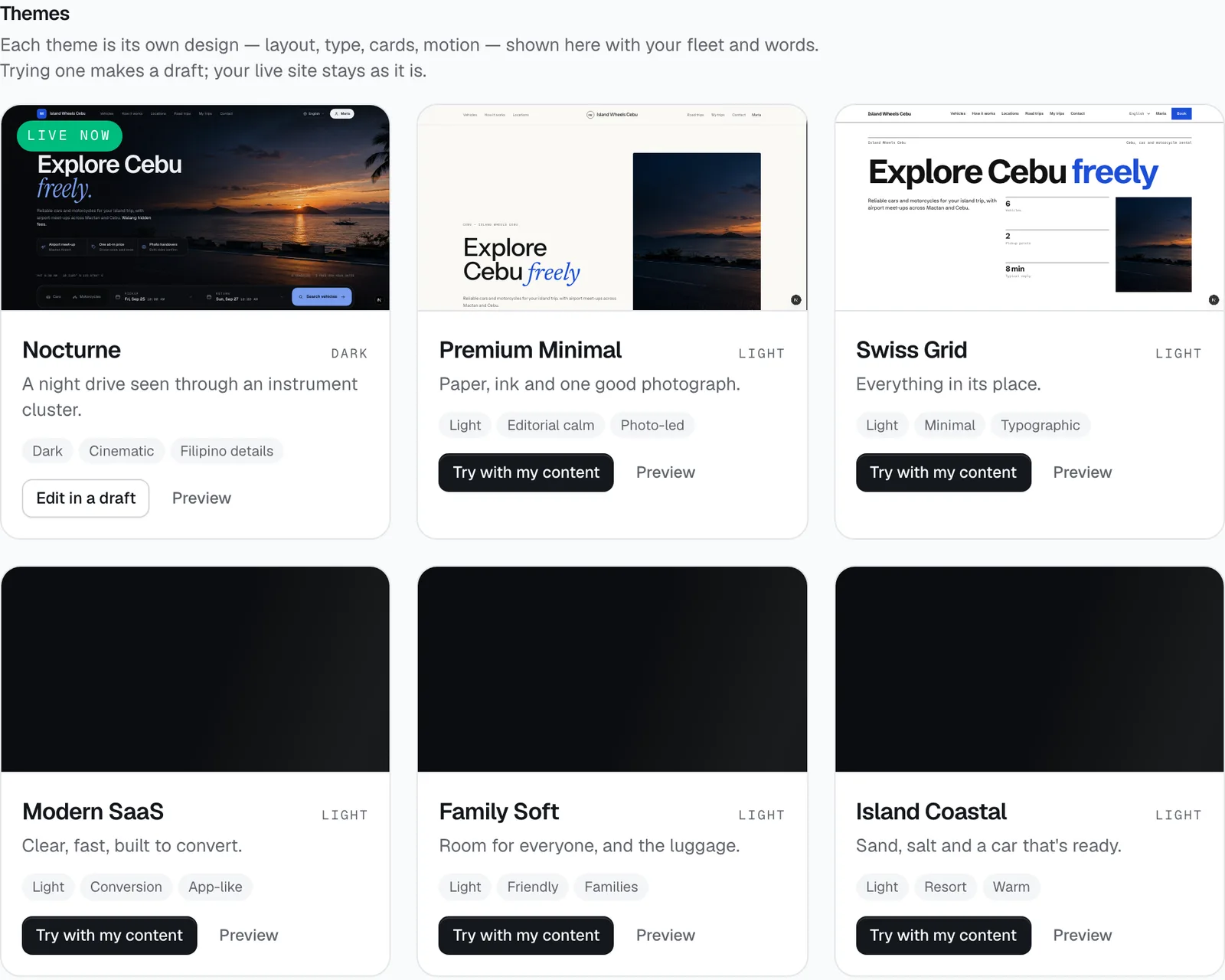
- Try with my content
- Preview on all devices
Edit your draft
In the editor, pick a page from the menu at the top (including the Vehicle pages template) and switch between desktop, tablet and phone. The panels on the left are Layers, Add section, Pages, Theme & style, Menus & SEO and Checks. Click any part of the page to edit it on the right.
Your work saves by itself — watch for All changes saved. The Checks count at the top shows anything to fix before you can publish.
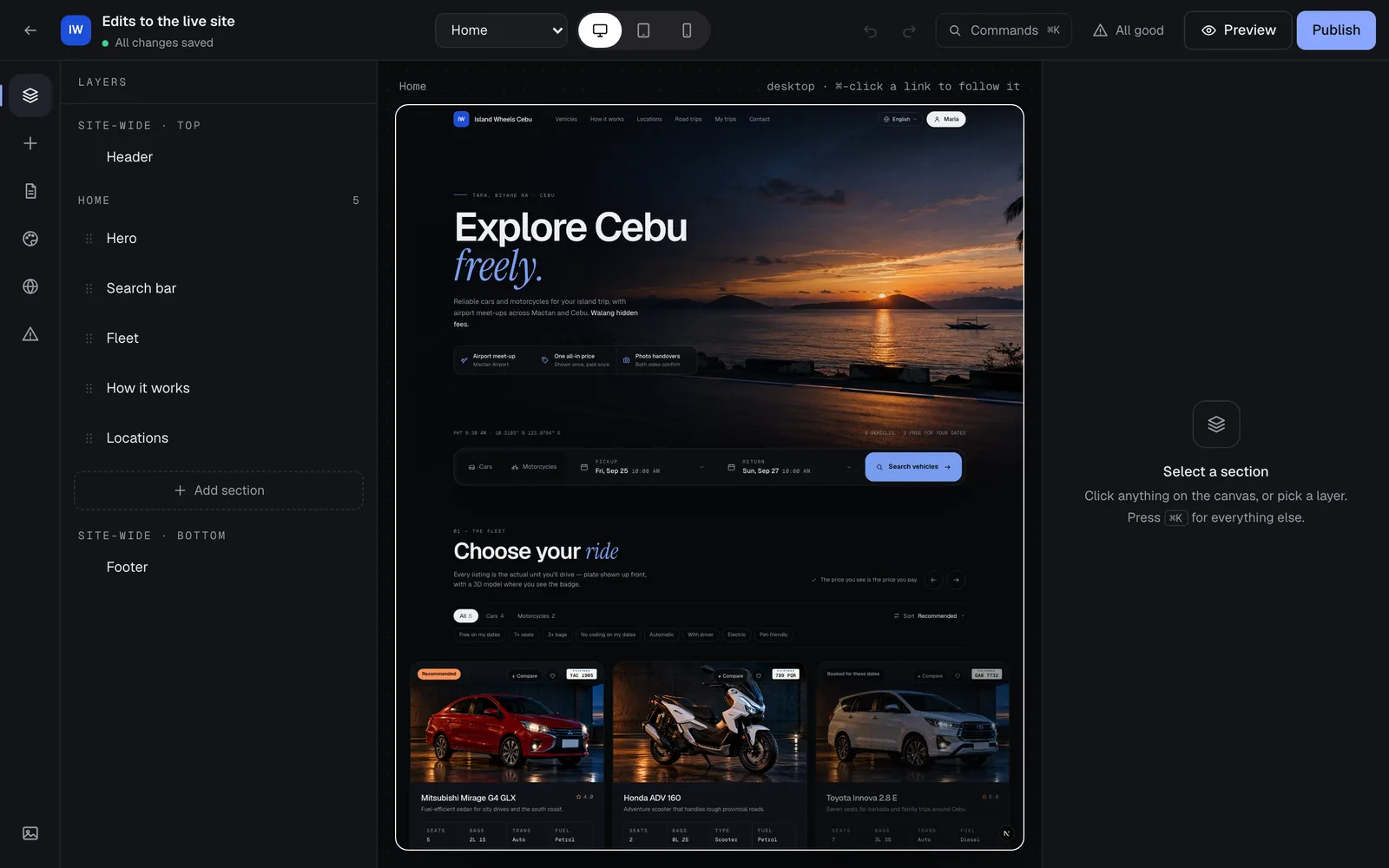
- Panels
- All changes saved
- Preview
- Publish
Send a preview link
Tap Preview in the editor, or Preview link on a draft card. The link is copied for you and works for 7 days — send it to your partner or a regular customer for a second opinion. It shows the draft marked as a preview, with booking switched off. Archiving the draft stops its links.
Publish
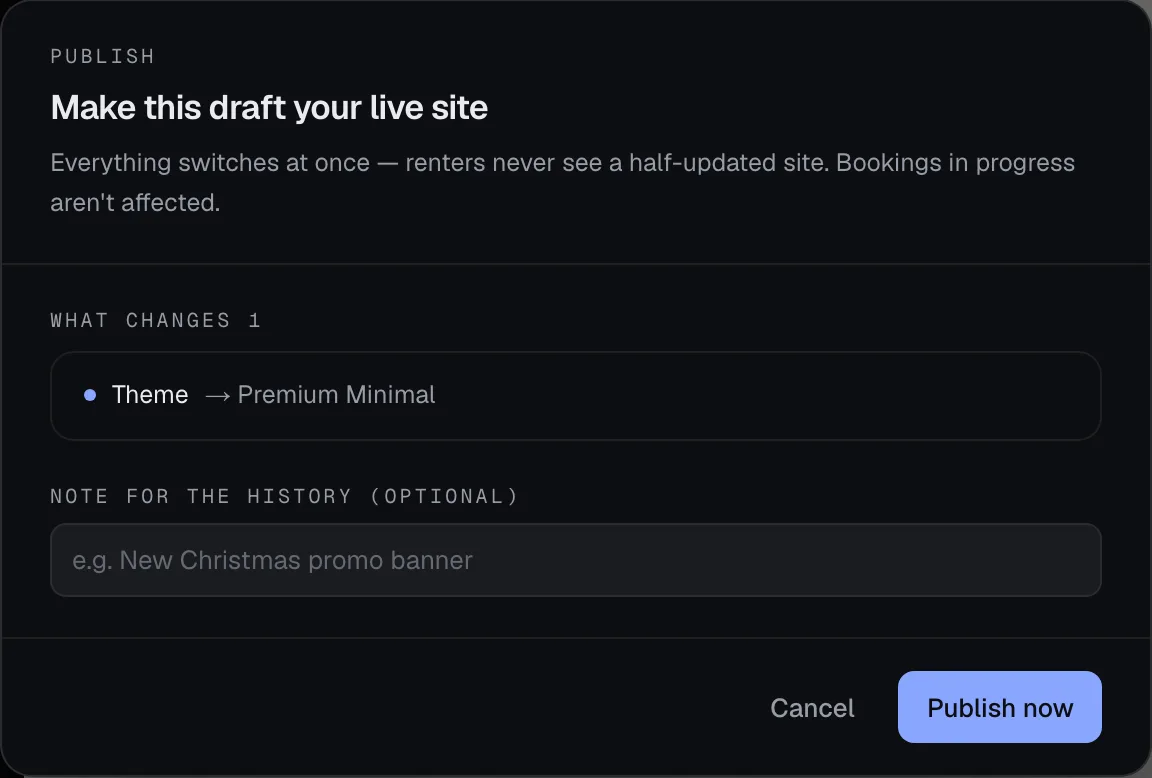
Tap Publish. The dialog lists What changes against your live site, anything you Must fix first, and tips that are Worth a look. Add an optional note (e.g. “New Christmas promo banner”) and tap Publish now.
Everything switches at once, and bookings in progress aren’t affected. Every version is kept under Publish history, where you can Compare with live, Copy into a draft or Roll back in one step. Only owners and managers can publish.
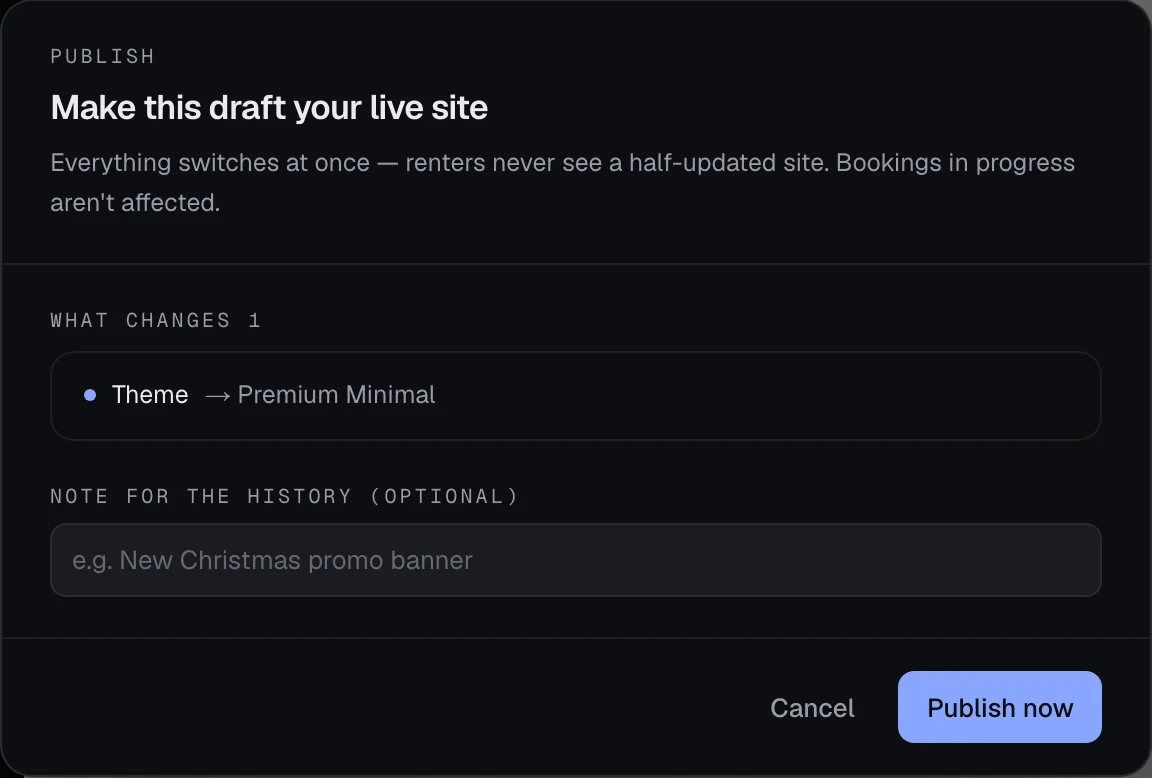
- What changes
- Note for the history
- Publish now
Choose your languages
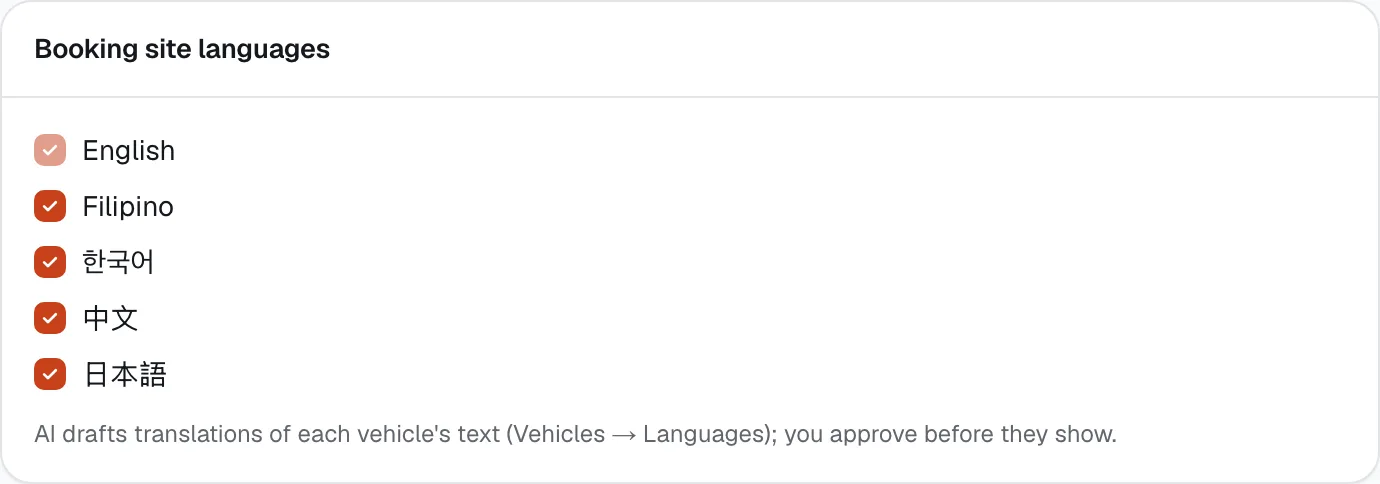
In Settings → Languages, English is always on. Tick Filipino, 한국어 (Korean), 中文 (Chinese) or 日本語 (Japanese) to add them to your site.
For each vehicle, open Vehicles → the vehicle → Languages and tap Draft with AI. Read and edit the translation, then tap Approve — it only shows on your site once approved.
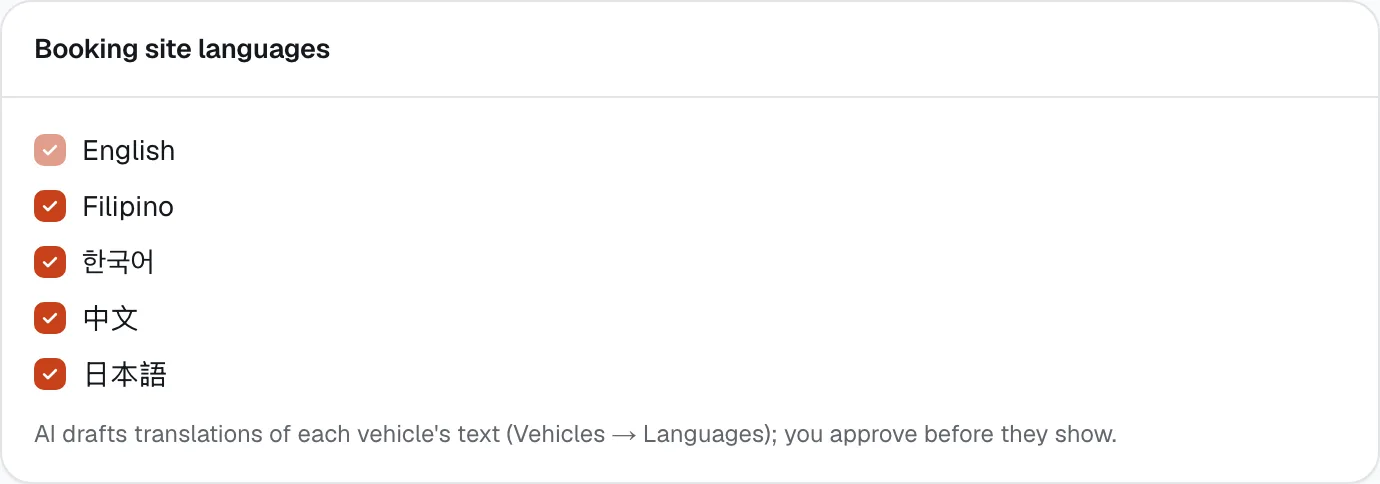
- English is always on
- Tick the others you want
Use your own domain, or add the widget
Grow → Website & widget has two options:
- Custom domain — type a domain you own, like
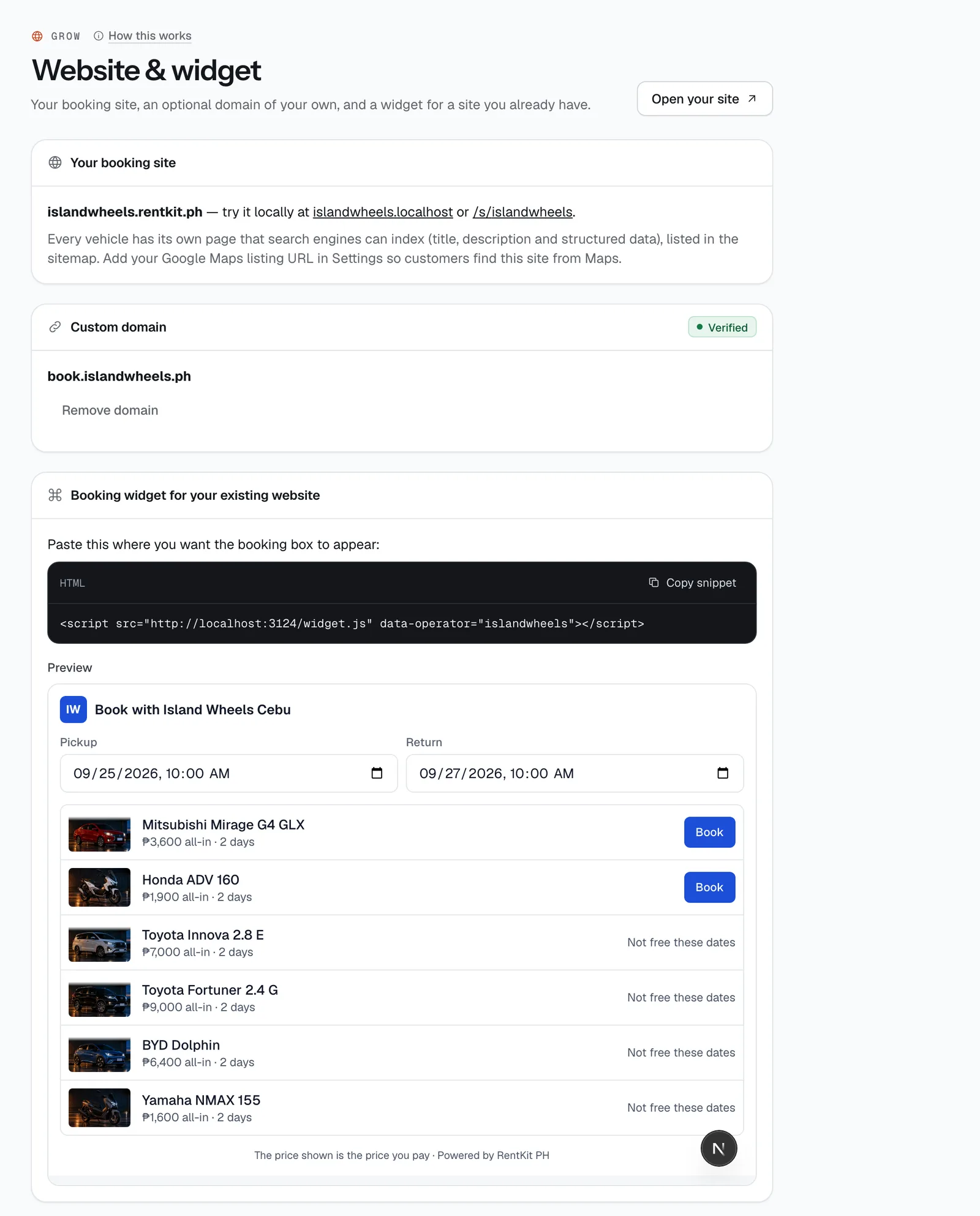
bookings.yourbrand.ph, and tap Add. At the company where you bought the domain, add the two records shown — a TXT record with your ownceerent-verify=…code, which proves the domain is yours, and a CNAME pointing tocname.ceerent.com— then tap Check DNS. The badge turns Verified once the TXT record is found. Your ceerent.com address keeps working. - Booking widget — already have a website? Tap Copy snippet and paste it where you want the booking box. Visitors pick dates, see your vehicles with all-in prices, and tap Book to finish on your booking site.
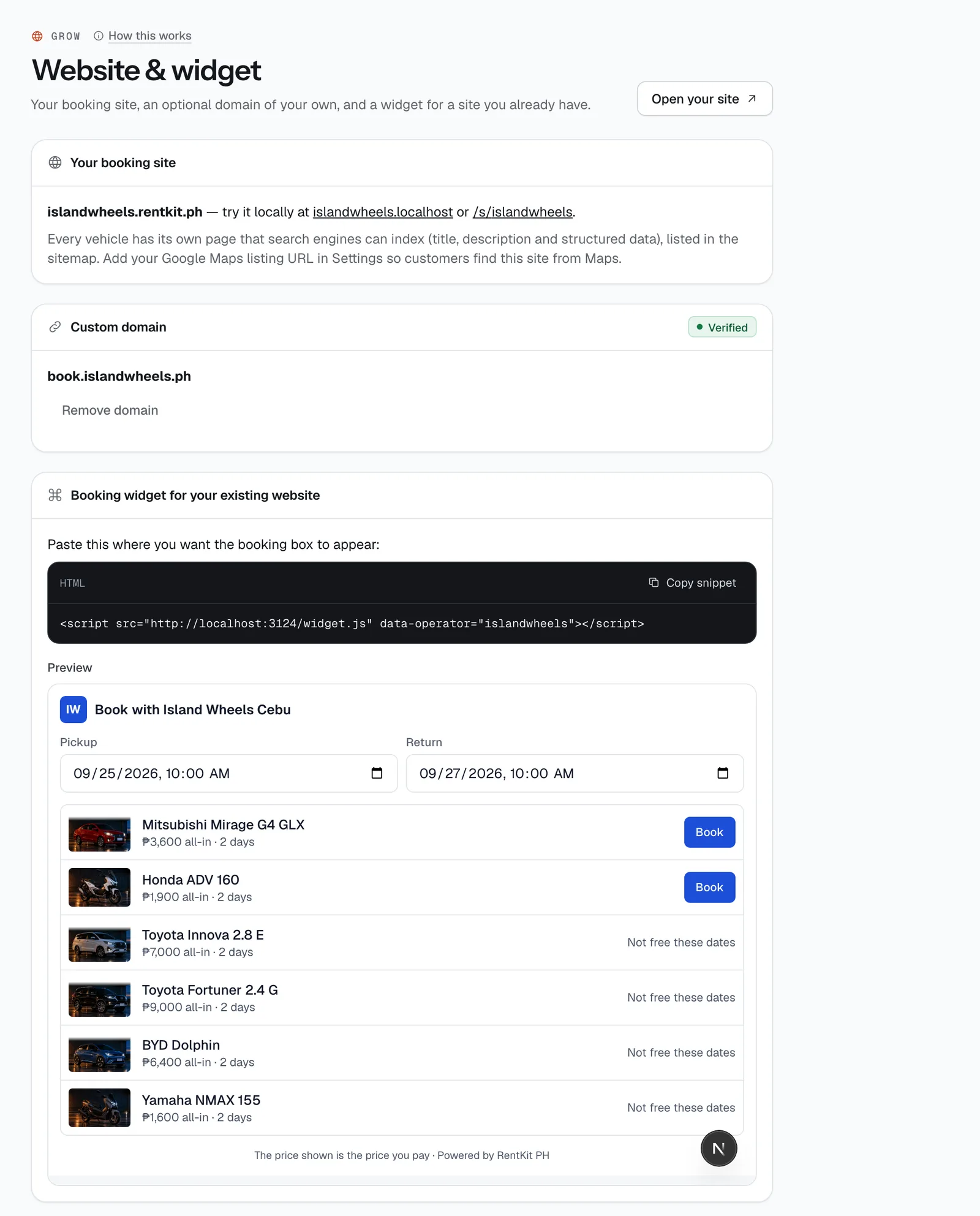
- Custom domain
- Copy snippet
- What the widget looks like
- Custom domain — type a domain you own, like
Share your link on Facebook
Your booking link is yourname.ceerent.com (or your own domain). Put it in your Facebook page’s website field, pin a post with it, and paste it in chats. There’s no separate Facebook “Book now” button to set up — the link does the job.
Set a share image in the editor under Menus & SEO → Share image (1200 × 630 works best): it’s the picture people see when your link is posted on Facebook or Messenger. Add your Google Maps listing in Settings → Business so your site links to it.
Good to know
- Nothing changes for renters until you publish. If someone else published while you were editing, your draft card warns you — publishing it replaces their version.
- Every vehicle has its own page that search engines can find, listed in your site’s sitemap.
- Removing a custom domain takes effect right away; your site stays live at your ceerent.com address. See Website & widget.
Stuck on a step?
A person answers, in Filipino or English — Mon–Sat, 8:00–20:00 PHT.
- Answer Messenger, Viber and WhatsApp with auto-replyBring your chats into one Inbox, let the auto-reply answer date and price questions with live availability, and step in to reply or send a payment link.10 min
- Sign up and go liveCreate your account, work through the setup steps, switch your booking site on and share it. Most operators finish in one sitting.20 min
- Get paid: online, by link and at the counterConnect your Xendit account, let renters pay by GCash, Maya, card, QR Ph or over the counter, take chat and phone bookings with a payment link, collect the rest at the desk and send refunds.15 min